Configuration Analyzer
Contents
Overview
Configuration analysis can be done after applying a delivery containing an IFS cloud; - Release update - Service update - Customization
After applying an update or customization, the Configuration Analyzer can be used to analyze and validate the configurations in the target system to determine whether any existing configurations have issues, such as a referenced artifact being missing from the target system or being in an invalid state. These issues may cause the configuration to become invalid due to changes introduced by the delivery.
Examples
A Projection Configuration fails validation if it references a Custom Entity that no longer exists in the target environment.
A Custom Event becomes invalid if the table it is based on is missing in the target environment.
Analyze Configurations
Configuration analysis can only be done by a user granted with the “Custom_Objects_Admin” permission set. Configuration Analyzer is available under Configuration in Solution Manager within the IFS Cloud Client.
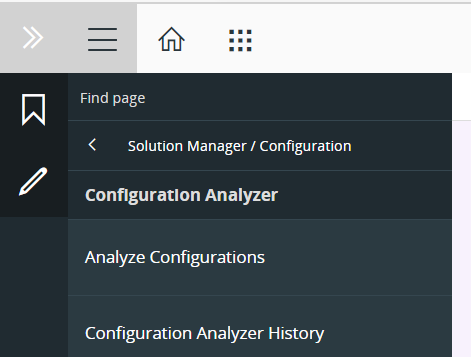
There are two navigator entries for the Configuration Analyzer. Namely; “Analyze Configurations” and “Configuration Analyzer History”. “Analyze Configuration” page triggers the configuration analysis and “Configuration Analyzer History” page can be used to see the details of the current analysis or the previous analyses.
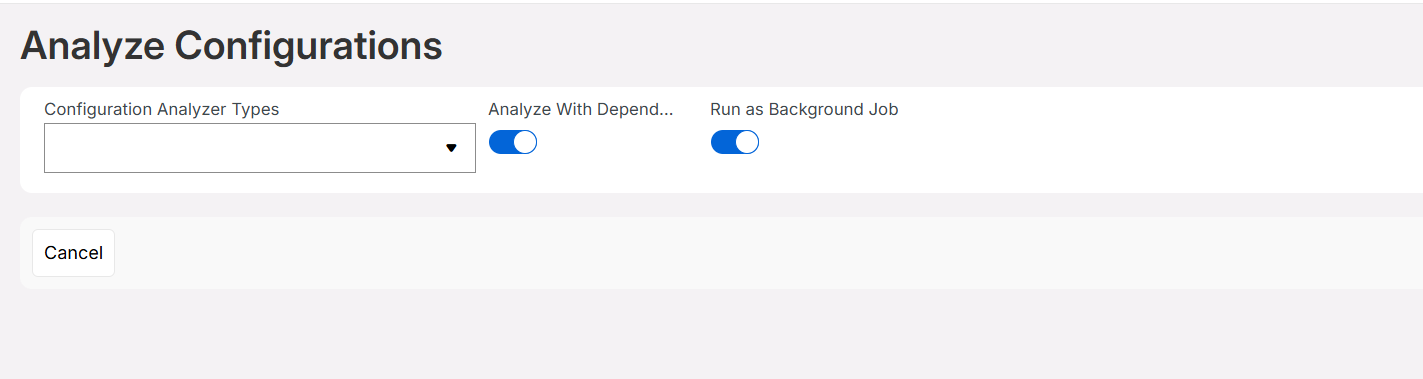
In order to carry out a configuration analysis, it is required to select the configuration types that you want to analyze from the dropdown in the “Analyze Configurations” page. You have been given the capability of analyzing multiple configuration types at the same time.
The following configuration types are supported by the Configuration Analyzer:
- Custom Attributes
- Custom Entities
- Custom Events
- Custom Event Actions
- Custom Enumerations
- Queries
- Sql Quick Reports
- Query Designer Quick Reports
- Projection Configurations
However, in terms of the type "Page Configuration", an ability to view additions and deletions of attributes/elements in the CORE layer is provided with the help of the Page Designer. For more information: Click here
The analysis can be executed as a background job by enabling the Run as Background Job toggle. This option can be used when users need to continue working in the same environment while the analysis runs in the background. Once the analysis is completed, the validation results and execution details are available on the Configuration Analyzer History page.
After selecting the configuration types, ensure that the Analyze with Dependents toggle is turned off, then click Start Analysis to begin the analysis. If the analysis is executed in the foreground, a toast message appears upon completion and the user is automatically navigated to the Configuration Analyzer History page, where the analysis details can be reviewed.
Analyze Dependencies
Dependency Analysis extends the Configuration Analyzer by helping users identify configuration items that may be impacted due to issues in their dependent artifacts.
Following an IFS Cloud release update, service update, or customization deployment, changes made to entities, attributes, tables, projections, or other referenced artifacts can affect existing configurations. Dependency Analysis helps identify such situations by evaluating the relationships between configuration items and the artifacts they depend on.
By analyzing these dependencies, users can proactively identify configurations that may require attention after an update and understand the source of potential validation issues.
Dependency analysis is supported for all configuration types that are supported by the Configuration Analyzer.
To perform dependency analysis:
- Navigate to the Configuration Analyzer page.
- Select the required configuration types.
- Enable the Analyze With Dependents toggle.
- Click Start Analysis.
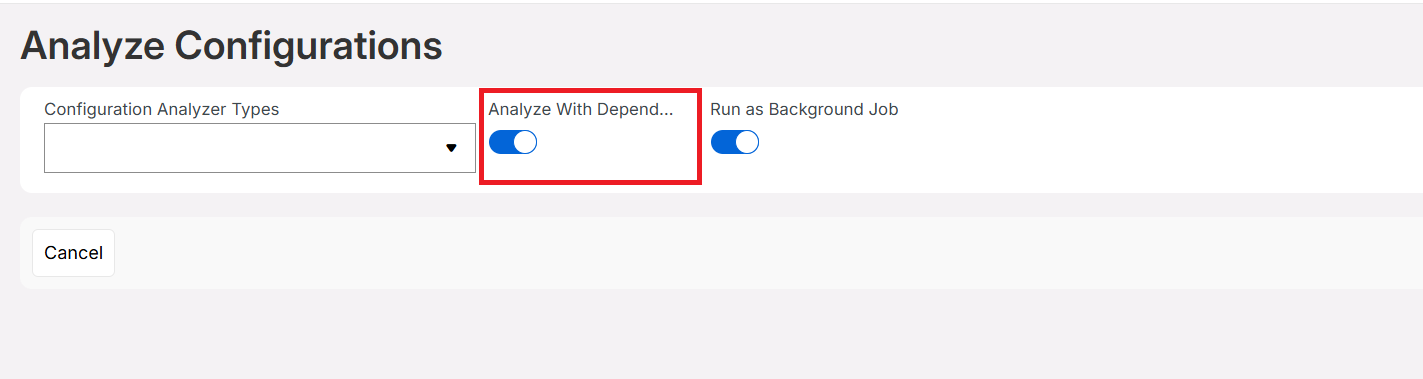
The above image shows the location of the Analyze With Dependents toggle in the Configuration Analyzer page.
Once the analysis is completed, a new record is created in the Configuration Analyzer History page. A log file is generated to review execution details and verify the analysis results. It is made available for download from the Configuration Analyzer History page. If the analysis is performed in the foreground, the log file is downloaded automatically when the analysis is completed.
Dependency analysis results are displayed together with the configuration analysis results in the Configuration Analyzer History page. Any identified dependency issues are highlighted in the result set together with relevant messages that describe the affected dependency.
Examples of dependency-related impacts include:
A Projection Configuration fails dependency analysis if it references a Custom Entity that depends on an Enumeration that is missing in the target environment.
A Custom Event fails dependency analysis when one or more items of the table it is based on are missing in the target environment.
These results help to identify impacted configurations, understand the cause of the issue, and take the necessary corrective actions.
Review Results
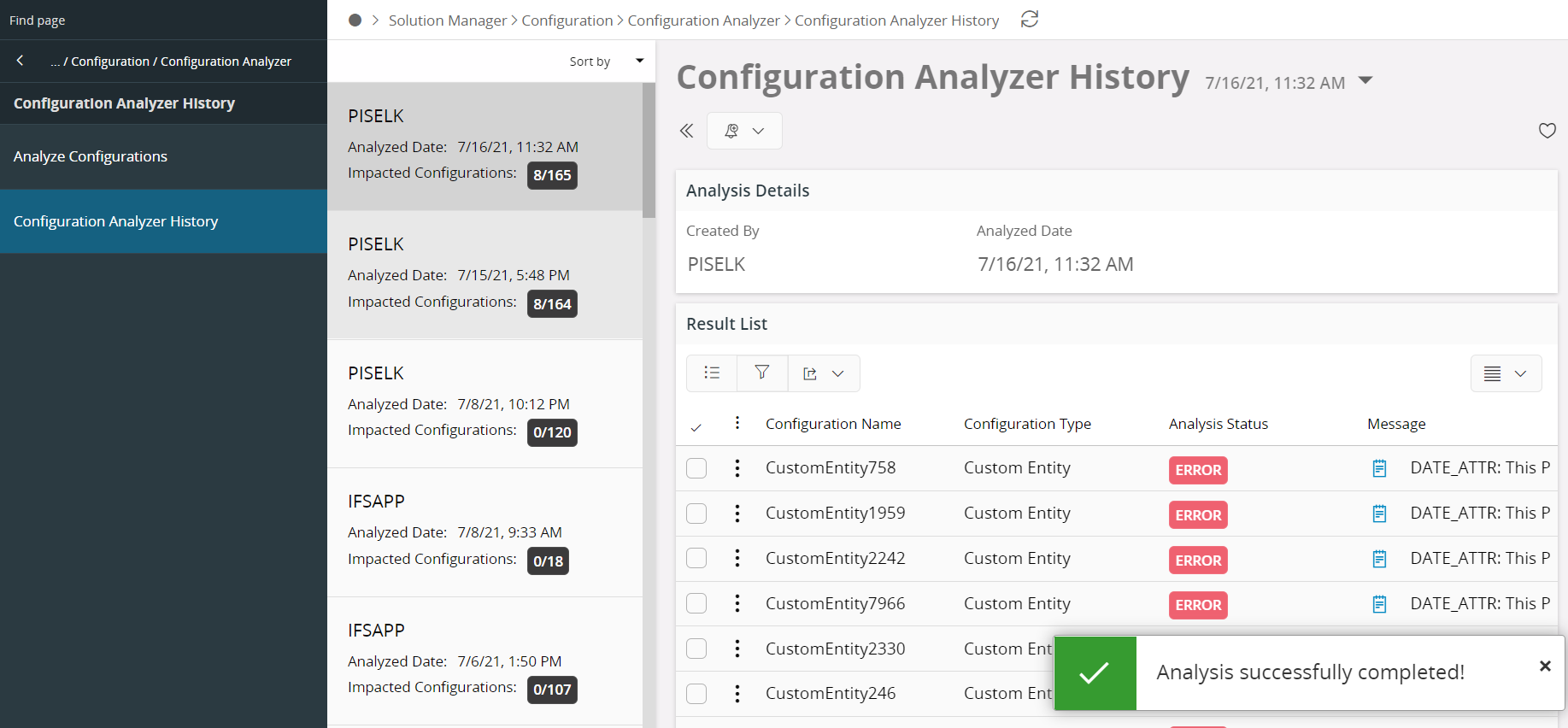
It is possible to review previously completed analysis details using the selector right next to the 'Configuration Analyzer History' page topic or else easily by the navigator in the left of the page. All the analyses that have been done are ordered by analyzed timestamp.
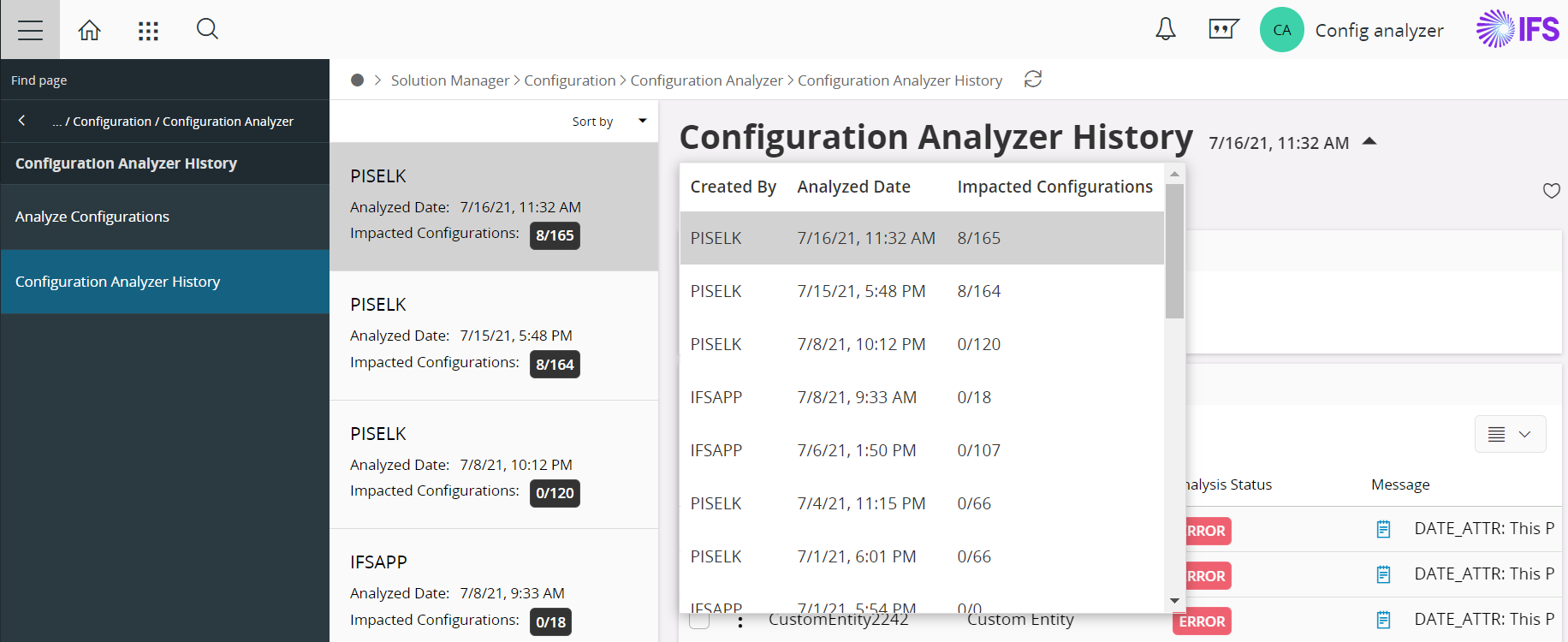
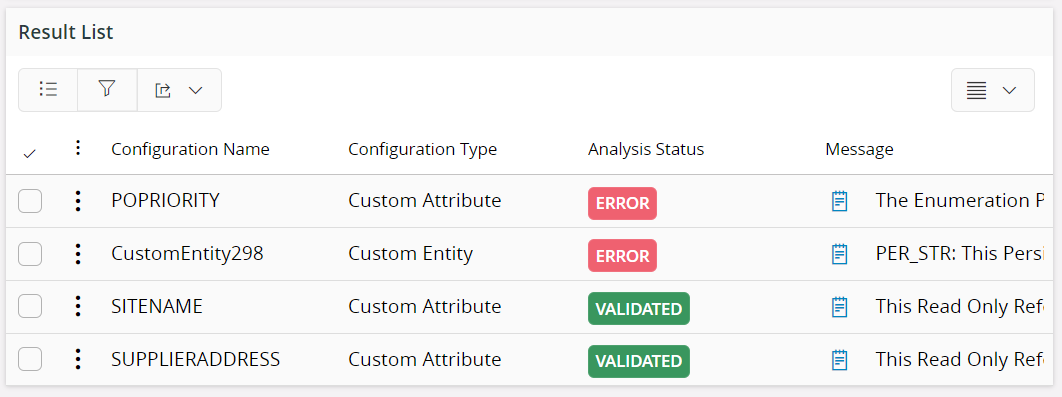
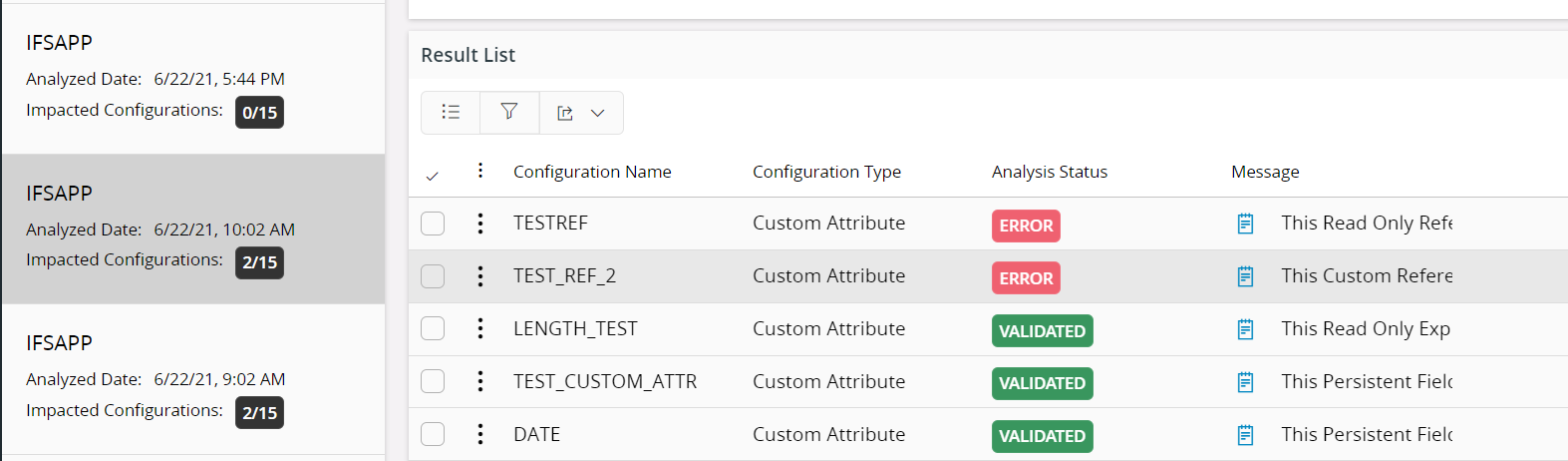
Configuration Analyzer History page consists of two cards. The “Analysis Details” card shows the analysis details such as created user and analyzed timestamp. The “Result List” card shows all the resulting configuration items corresponding to the analysis in a tabular view with the details configuration name, configuration type, analysis status, and message. All the resulting items with analysis status “error” are populated at the top of the list by default.
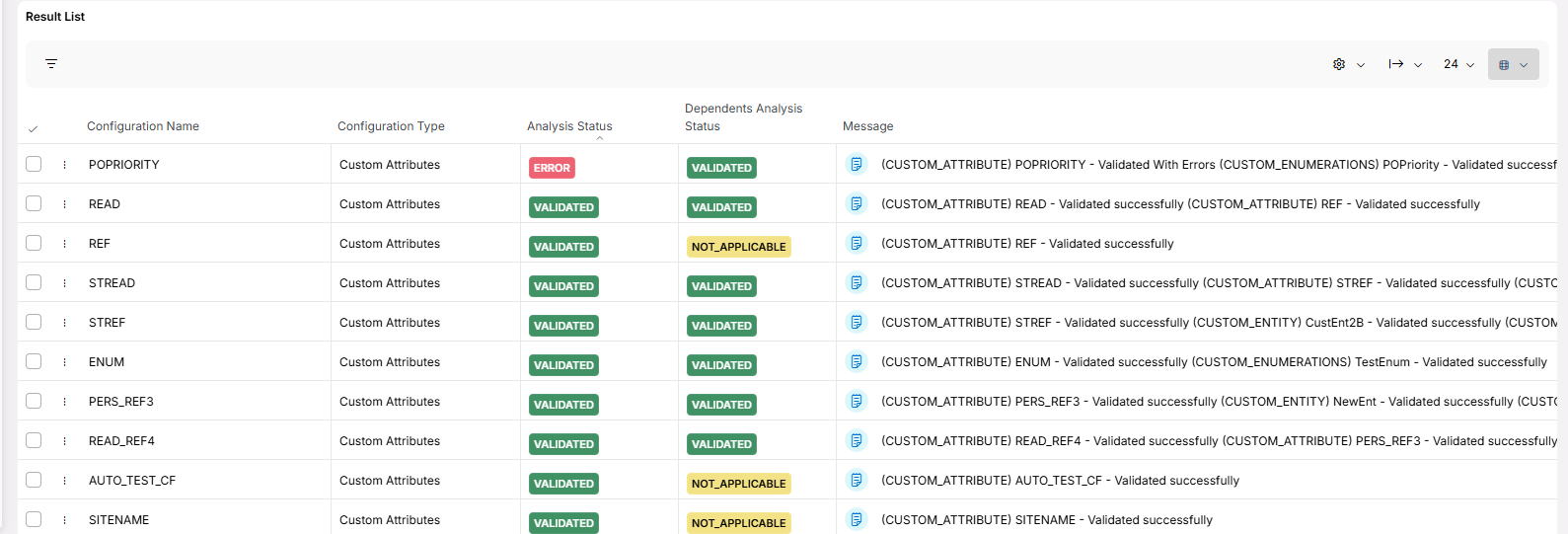
When dependency analysis is enabled, the Result List displays the validation status of the dependent items in an additional column called Dependency Analysis Status. This column helps users identify whether the dependencies associated with a configuration item are valid or impacted.
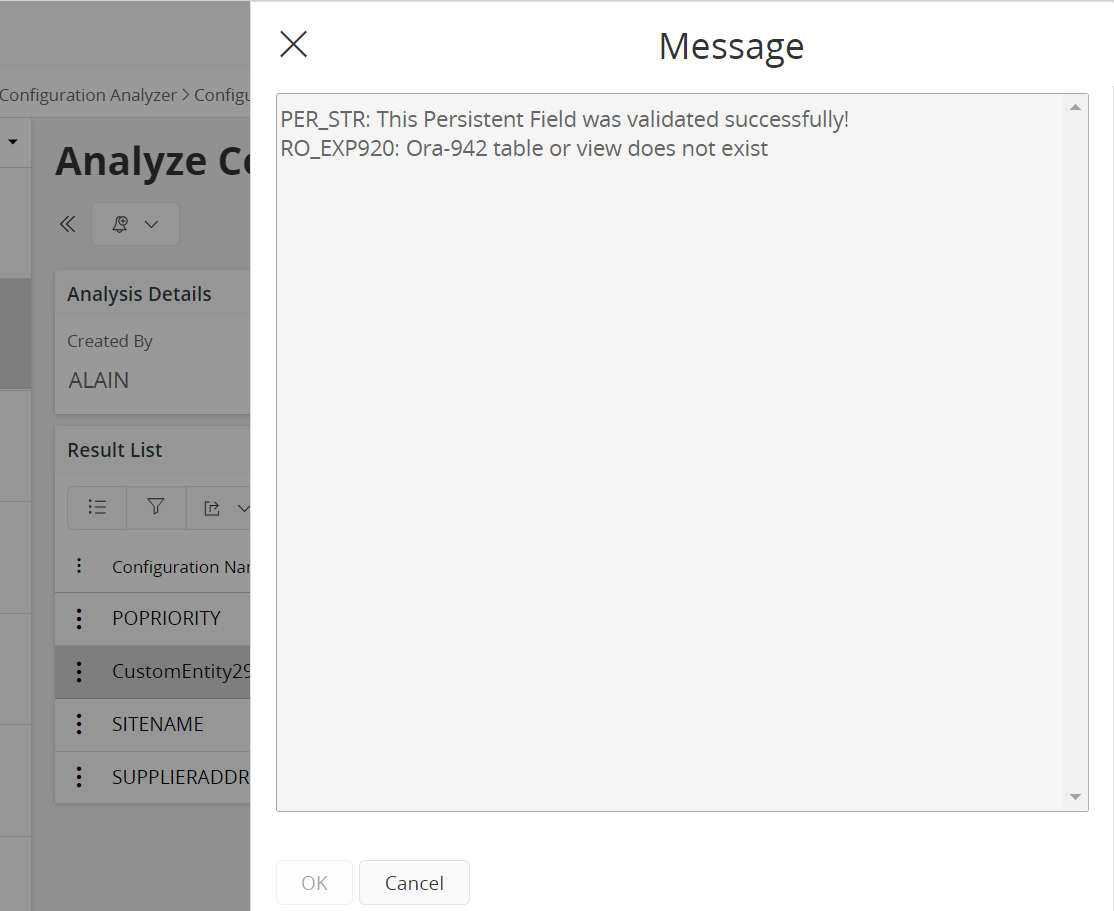
The entire message can be viewed, by clicking on the icon next to the message.

Further, the user can get a high-level idea about the amount of impact and the effort required to fix the impacted configurations from the small summary shown in the navigator. The summary shows the total number of analyzed configuration items versus the number of configuration items with analysis status 'error' as a fraction.
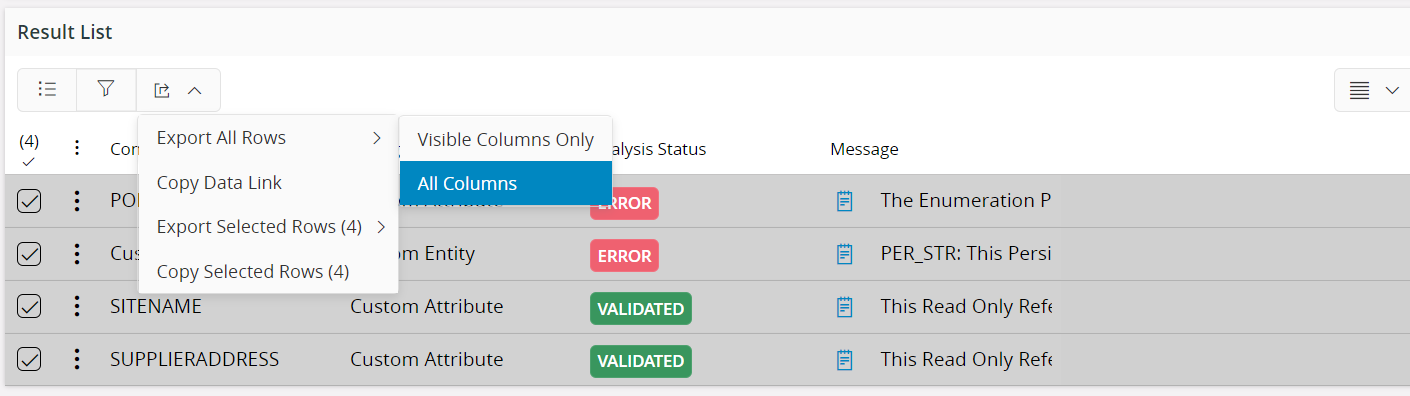
Export configuration analysis report as an excel file
Another functionality provided by the configuration analyzer is, the ability to export the result item set as an excel file. That can be easily executed by following the steps given below: - Select the required rows to be exported. - Click on the export icon in the “Result item” card. - Selecting the required option from the option list.
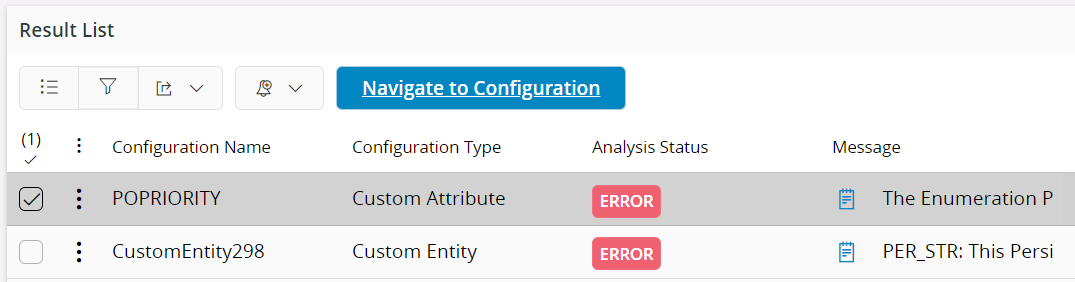
Navigate to the corresponding configuration
Configuration analyzer has given the support to navigate to the corresponding configuration of each analyzed item. By selecting a single row, the "Navigate to Configuration" button will be displayed allowing the user to easily navigate to the corresponding configuration. A configuration which is tagged with the analysis status "error", not only allows a user to do navigate to the relevant configuration page but also to do the fix required.
Though the current release does not provide support to analyze the impacts for page configurations, the possible workaround would be to manually navigate to the 'page configurations' page and scan each page configuration to check whether those have been impacted by the delivery changes.
To ensure that the issues have been resolved following the fixes done for configurations, the user is required to navigate to the configuration page corresponding to the configurations items with analysis status 'error' and run the validate function in the page. Validation function returns an appropriate alert according to the results. A user with administrator rights can simply re-run the configuration analyzer and ensure that all the impacts of the configurations are resolved after the fixes.
Note: Another advantage of this Configuration Analyzer is, it is possible to get the configuration analysis done using this tool in use place as well.
Other analyzer tools
Upon completing an configuration analysis, it would be required to conduct an impact analysis on configuration items not covered by this tool. Users are expected to run all analyzer tools in order to complete the impact analysis.
| Tool | Description |
|---|---|
| Impact Analyzer | Analyze customizations use Impact Analyzer |
| Lobby Analyzer | Analyze impact on lobbies is done with the Lobby Analyzer |
| Page Rebase Designer | For page configurations the Page Configurations overview page is used to identify artifacts that is impacted by the upgrade. Affected Client Configurations, then the Page Rebase Designer is used to analyze details and rebase configurations to the new application release. |
Comparison with IFSAPP10 configuration analyzer tool
| IFSAPP10 | IFS CLOUD |
|---|---|
| Analysis done in Update Analyzer/Configuration Analyzer | Analysis done in an IFS Application environment having configurations |
| Impacts from Core Updates covered | Impacts from Core Updates covered |
| Impact from Customizations/Configurations not covered | Impact from Customizations/Configurations covered |
| User should manually search the configuration to fix | Possibility to navigate to the configuration to fix the issues |
| False impacts due the text search mechanism | Less false impacts |
| Can analyze before applying the update | Update should be applied before analyzing |