Self-Service Portal Integration (WRKCON)
This guide describes how to integrate IFS Cloud with the Self‑Service Portal for Contractor Management. It covers setup for two portal applications: Subcontractor Coordinator Portal and Subcontractor Technician Portal.
Contents
- Portal Applications Overview
- Prerequisites
- Contractor Coordinator Portal Configuration
- Contractor Technician (Execution) Portal Configuration
Portal Applications Overview
| Portal Application | Purpose | Users |
|---|---|---|
| Subcontractor Coordinator Portal | Manage and accept work, allocate tasks, manage payment lines, agreements, stock, purchase orders, and onboarding | Contractor Coordinators (B2B Portal Users) |
| Subcontractor Technician (Execution) Portal | Execute assigned tasks, report work completion | Contractor Technicians (via secure link) |
Prerequisites
- Supported from version 25.2.3 onwards.
- The Self‑Service Portal Platform is enabled
- Contractor Management base data is available
- An IFS Cloud B2B user is defined for a service contractor (B2B portal user for contractor coordinator)
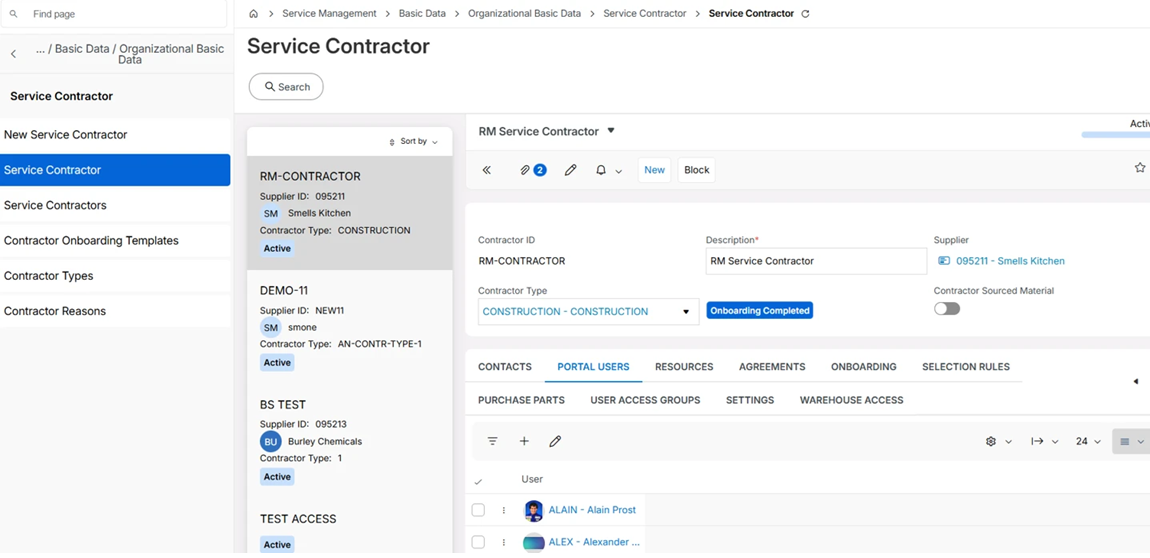
Contractor Coordinator Portal Configuration
Step 1 (Coordinator portal): Create IAM Client in IFS Cloud
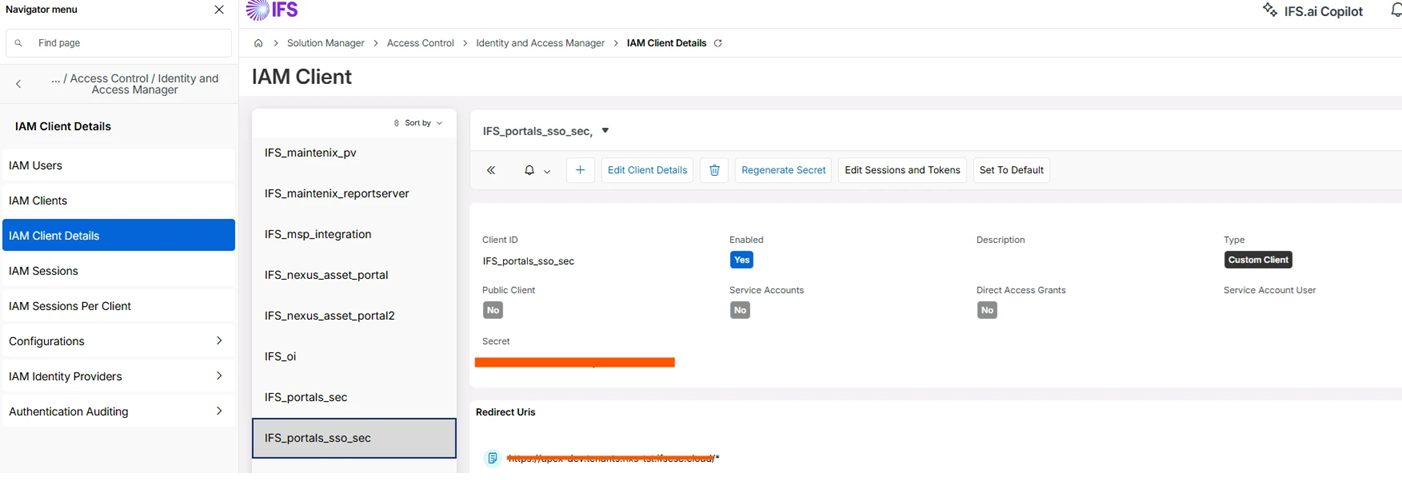
- Example Name:
IFS_portals_sso_sec(you may use any preferred name)
| Setting | Value |
|---|---|
| Enabled | Yes |
| Direct Access Grants | No |
| Public Client | No |
| Service Account Connected | No |
| Redirect URL | example: <tenant portal URL> |
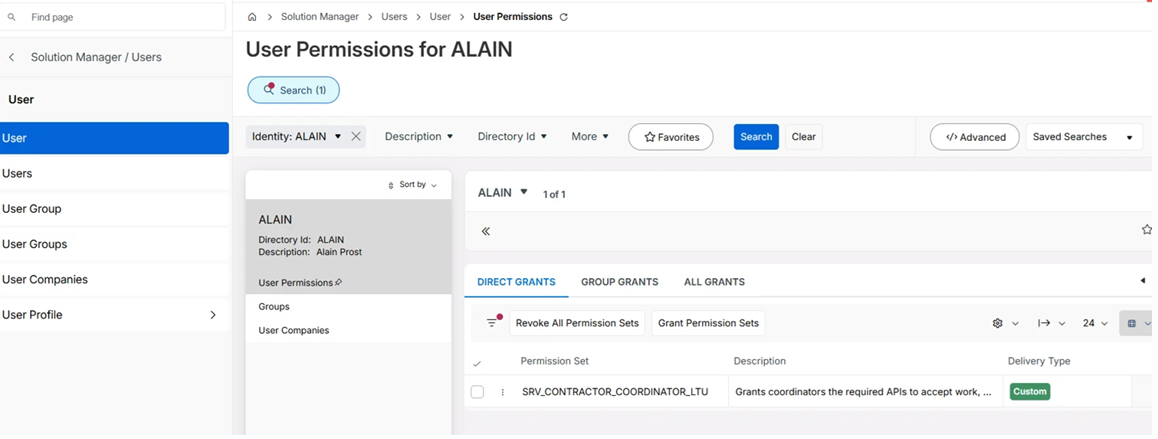
Step 2: Assign Permission Set
Grant contractor coordinator portal users the following permission set:
| Permission Set | License Type |
|---|---|
SRV_CONTRACTOR_COORDINATOR_LTU | LTU (Limited Transaction User) |
For more information about LTU permission sets, please refer here.
Step 3: Configure Contractor Coordinator Portal
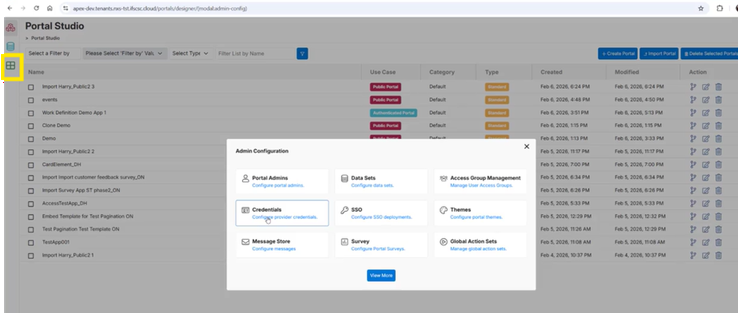
Use the Self‑Service Portal documentation to configure: Portal SSO Connection, Credential Object, Provider, and Access Groups.
1. Create SSO connection
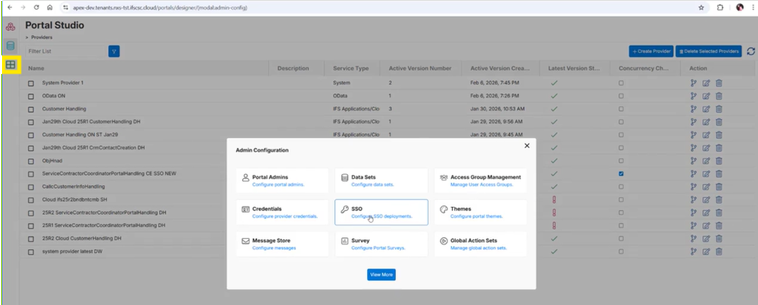
- When configuring SSO, you need to provide the IFS Cloud auth URL (
https://<ifs-cloud-url>/auth/realms/<realm-name>). <ifs-cloud-url>is your IFS Cloud environment URL (This URL should be externally accessible/publicly reachable)<realm-name>is the tenant namespace (same value used in the Cloud URL)- Example:
https://URL-lb.build.ifs.cloud/auth/realms/xyz2011 - Client Id - Provide an IFS IAM Client ID (created in Step 1)

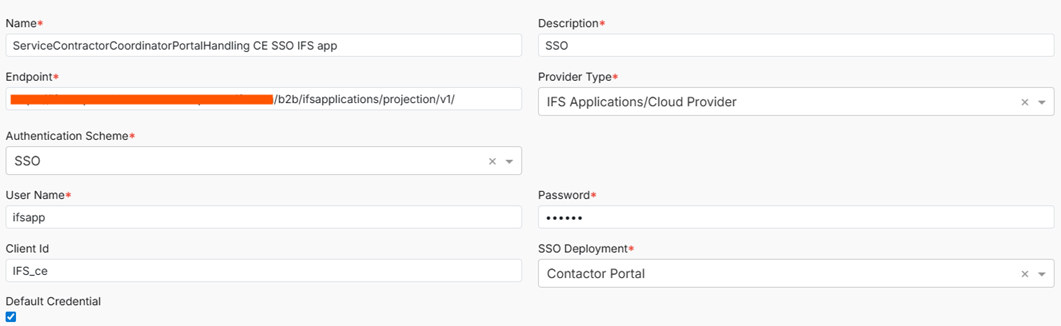
2. Create a Credentials Object
- Prerequisites for Fetching Projection Metadata (The following fields must be configured to fetch the metadata for the projection. This is a critical step when working with Portal Design):
- User Name / Password: Enter the credentials of an IFS Cloud user who has the necessary permissions to access the
ServiceContractorCoordinatorPortalHandlingprojection. - Client Id: Provide an IFS IAM Client ID. This must be configured as a public client with Direct Access enabled (e.g.,
IFS_ce). - End point - Use b2b in the URL. (This URL should be externally accessible/publicly reachable)
- Example:
https://<ifs_cloud_url>/b2b/ifsapplications/projection/v1/
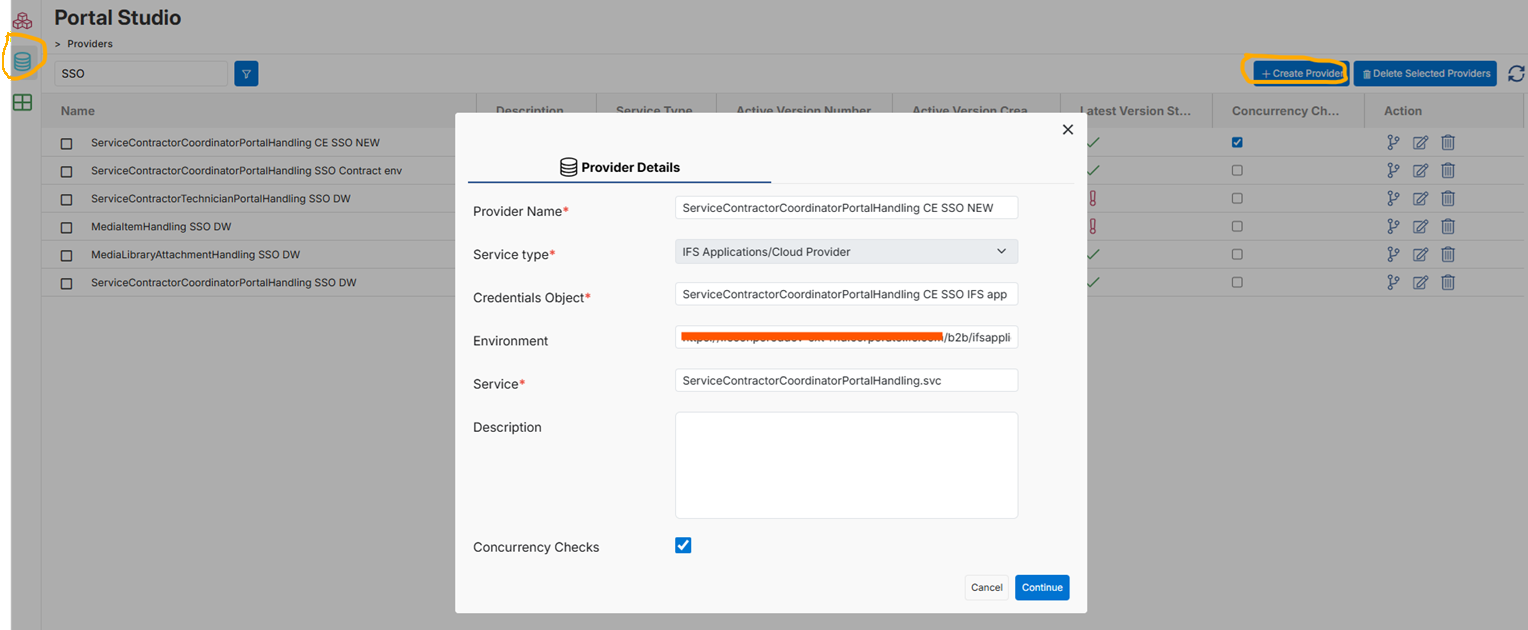
3. Create a Provider
Credential Object- enter the name of the object that you created earlier.- Service -
ServiceContractorCoordinatorPortalHandling.svc - Environment - Same URL mentioned in end point field of credentials dialog.
- Example:
https://<ifs_cloud_url>/b2b/ifsapplications/projection/v1/ - This URL should be externally accessible/publicly reachable.
- Example:
- Concurrency Checks - select this option.
Import the following apps from the App Store:
- Coordinator Portal My Technicians
- Coordinator Portal Financials
- Coordinator Portal Onboarding
- Coordinator Portal My Warehouses
- Coordinator Portal Agreements
- Coordinator Portal Order Management
- Coordinator Portal Bundle Order Management
- Subcontractor Coordinator Portal
Ensure that the Subcontractor Coordinator Portal app is imported last. This app acts as the Parent Link app, joining all the Coordinator Portal Apps together.
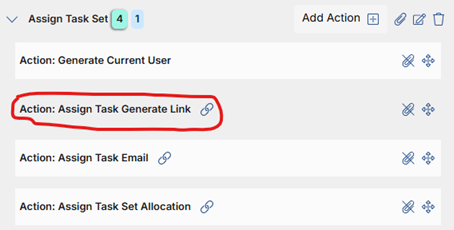
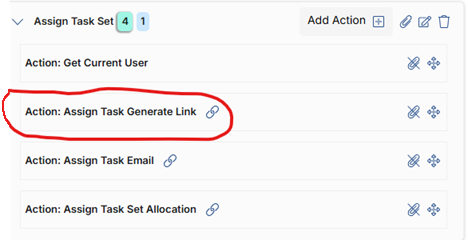
Note: After imports are completed, update the below actions which specify the execution portal app name in the Coordinator Portal Order Management and Coordinator Portal Bundle Order Management apps.
Coordinator Portal Order Management
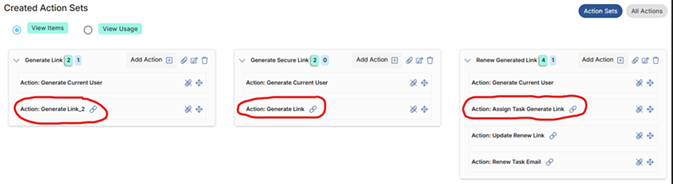
Coordinator Portal Bundle Order Management
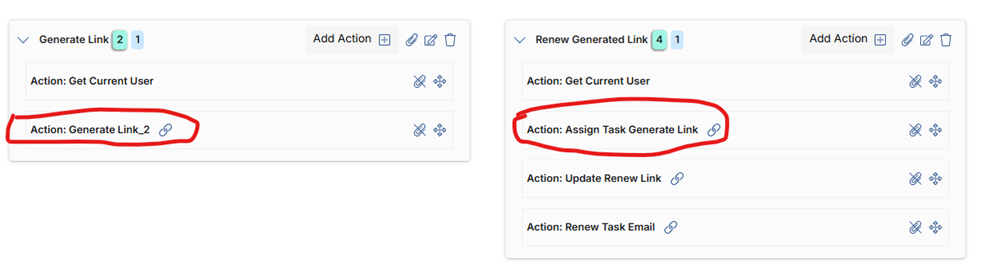
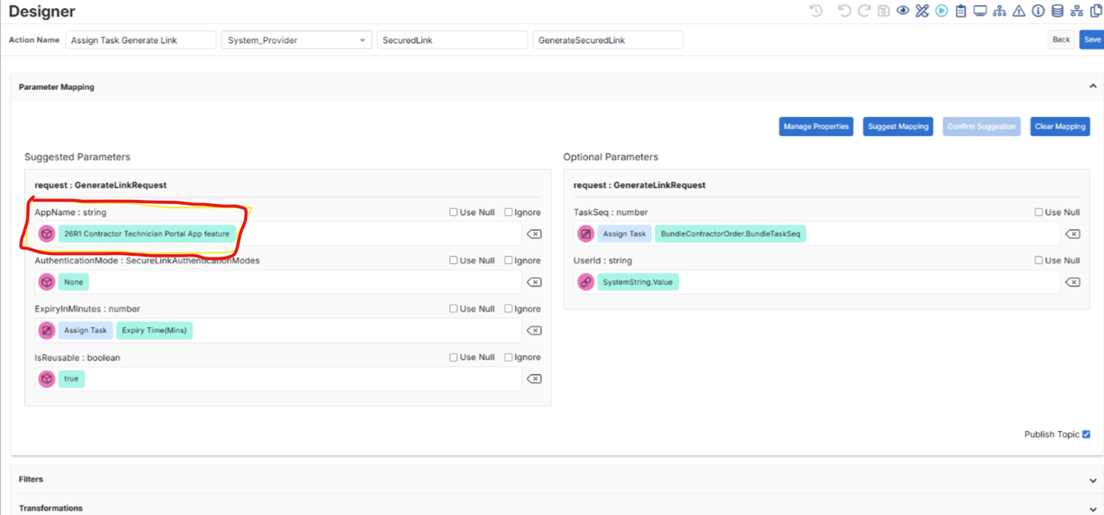
Please refer to the example below to update the AppName field for the "Assign Task Generate Link" action. Ensure you use the exact name defined when importing the Execution Portal App.
Contractor Technician (Execution) Portal Configuration
Step 1 (Technician portal): Create IAM Client in IFS Cloud
Create a new IAM client or use an existing one like IFS_ce.
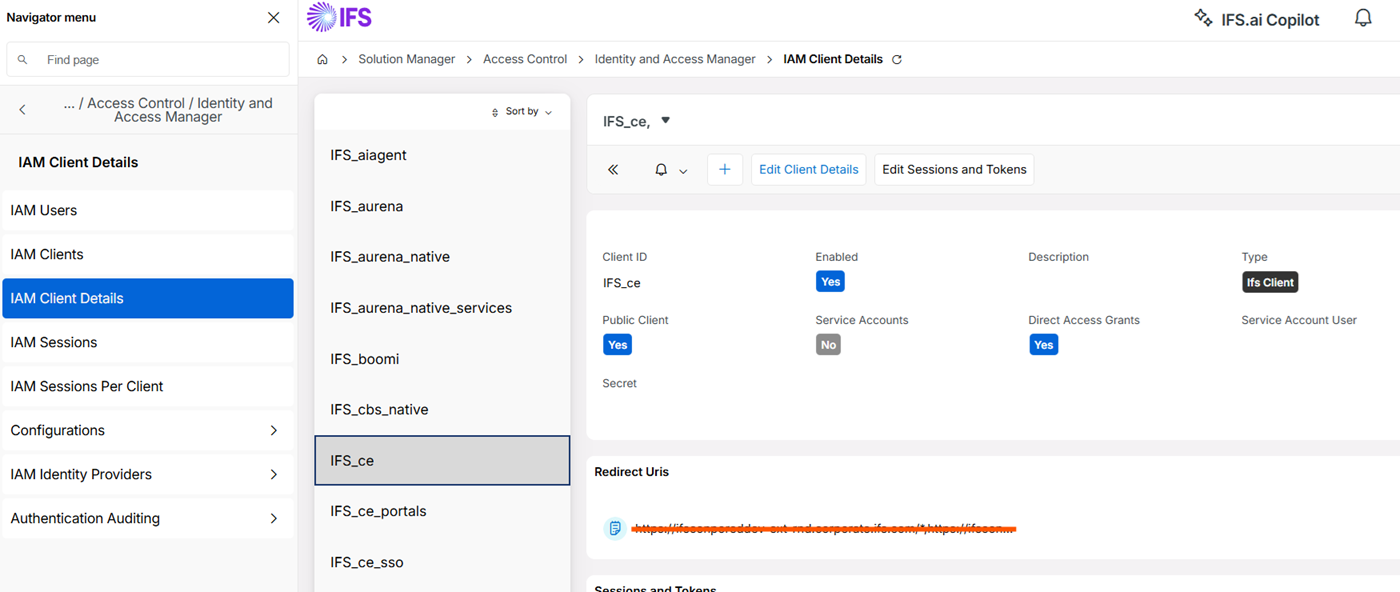
| Setting | Value |
|---|---|
| Direct Access Grants | Yes |
| Public Client | Yes |
| Service Accounts | No |
| Redirect URL | example: <tenant portal URL> |
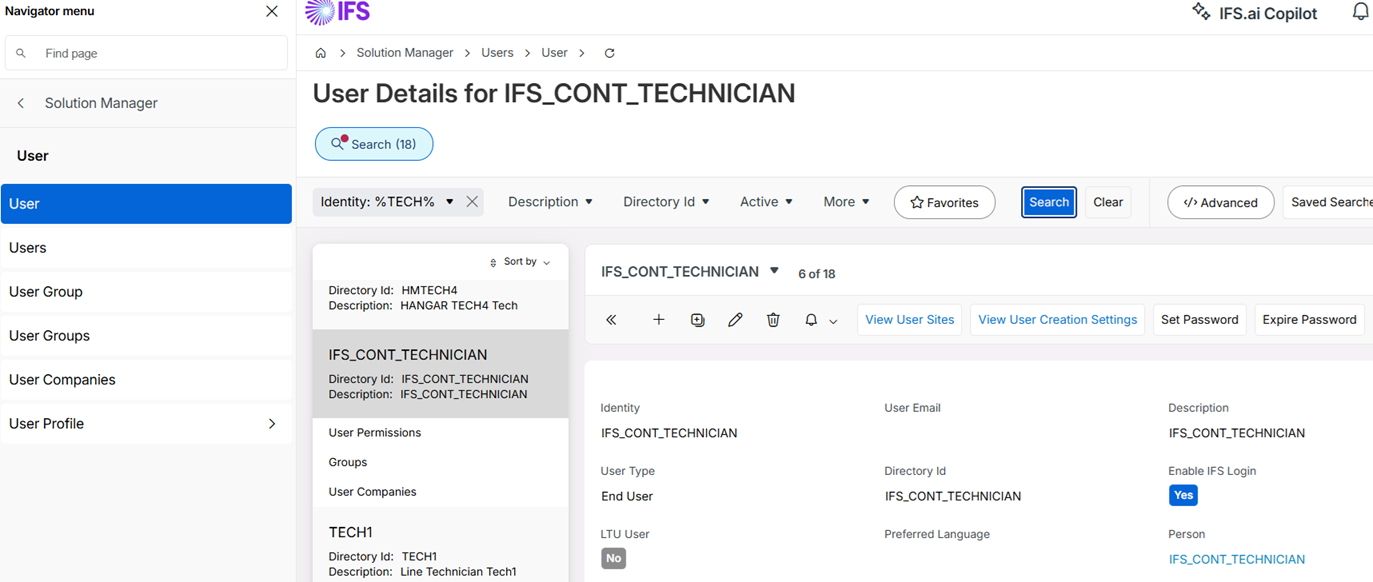
Step 2: Create Common User in IFS Cloud
Purpose of the Common Technical User
The Contractor Technician Portal does not use individual IFS Cloud user accounts for each external technician. Instead, a single common technical user is created and used by the portal backend to authenticate all technician interactions. This user exists purely for system integration and enables a trusted connection between the Self‑Service Portal platform and IFS Cloud projections.
- Technical user only: Do not assign to an individual technician.
- Shared across technicians: All contractor technicians authenticate through this single user.
- No direct user access: Technicians never see or use this user's credentials.
Although authentication is shared, business context is not. Technicians access the portal via a secure, tokenized link from IFS Cloud containing execution context (e.g., assigned task or bundle, and, if applicable, originating Coordinator user). When the portal calls IFS Cloud, the common technical user authenticates while secure link parameters determine authorized data access. Technicians only see work explicitly assigned to them; validation and authorization remain enforced in IFS Cloud.
Create the user:
Example Name:
IFS_CONTR_TECHNICIAN(any preferred name is acceptable)1. Create a new end user.
- 2. Set up credentials (username and password).
Step 3: Assign Permission Set
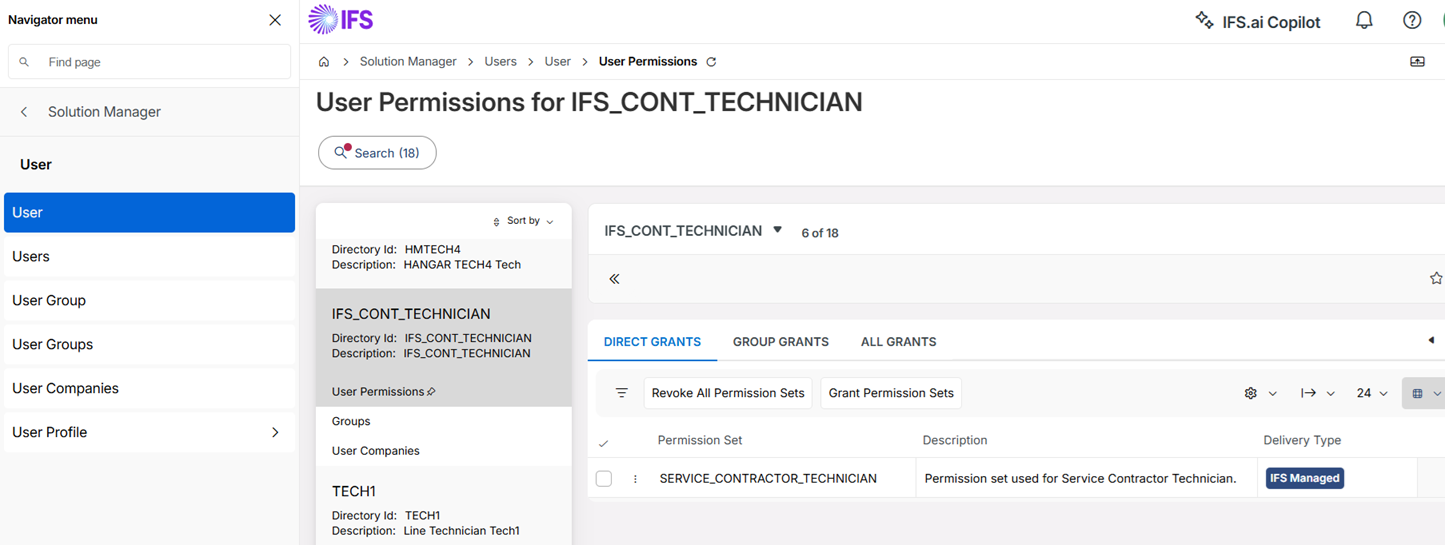
Assign the technician permission set to the common user created in Step 2.
| Permission Set | License Type |
|---|---|
SERVICE_CONTRACTOR_TECHNICIAN | Full License |
Step 4: Configure Contractor Technician Portal
Use the Self‑Service Portal documentation to configure the Portal credential object and Provider, using the OAuth2.0‑Password authentication scheme.
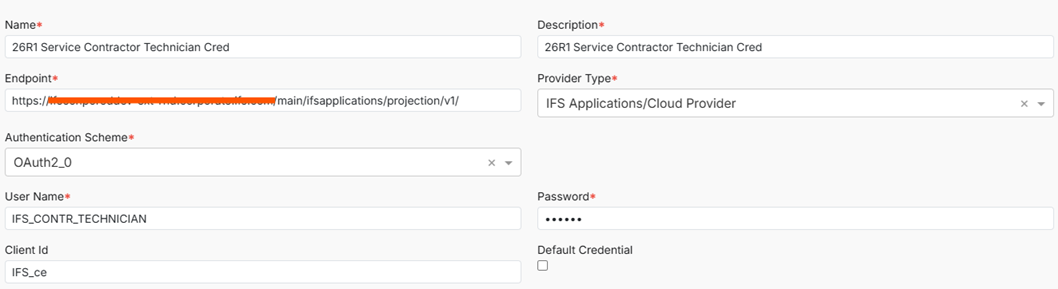
1. Create a Credential Object
- End point - Use "main" instead of "b2b" in the URL (b2b is used in coordinator portal credentials object).
- Example:
https://<ifs_cloud_url>/main/ifsapplications/projection/v1/ - This URL should be externally accessible/publicly reachable.
- Example:
- User Name/Password - Username (e.g.,
IFS_CONTR_TECHNICIAN) and password of the common user (from Step 2) - Client Id: Provide an IFS IAM Client ID (Step 1). This must be configured as a public client with Direct Access enabled (e.g.,
IFS_ce)
2. Create Providers
- You need to create 3 providers.
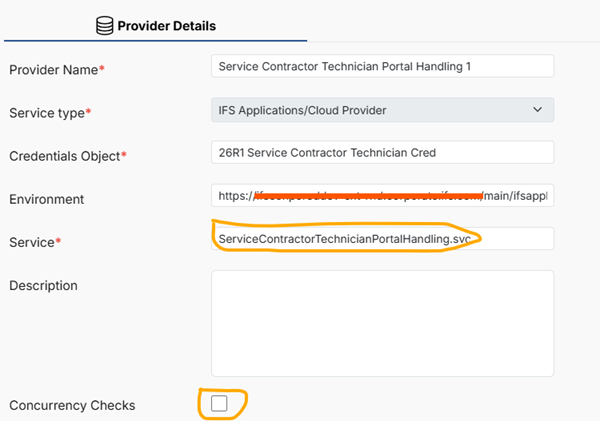
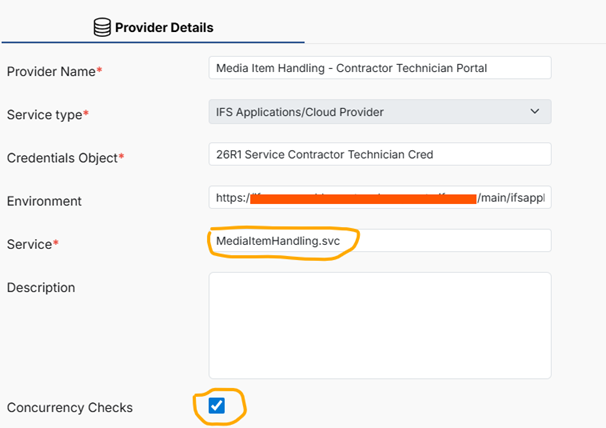
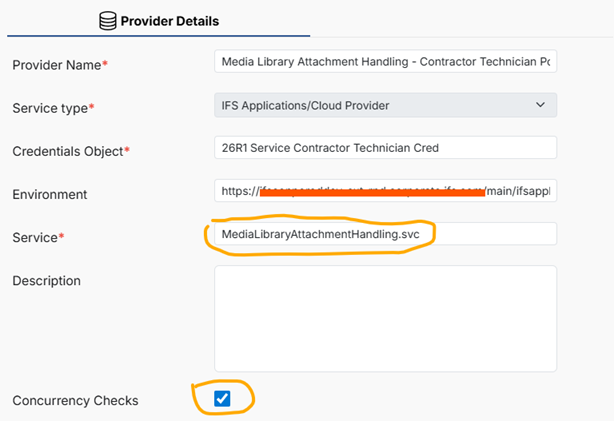
3. Import the Subcontractor Technician Portal app
Import the Subcontractor Technician Portal app from the App Store.