Common Considerations
Select the correct use case
Before embarking on the creation of a IFS Workflow, it is crucial to ensure that the business requirements are closely aligned with the intended use cases for designing IFS Workflows.
The IFS Workflows tool is designed to automate processes and facilitate end-to-end orchestration, both within IFS Cloud as well as with integrations between IFS Cloud and external systems. However, it is important to recognise that IFS Workflows are not suitable for operations involving heavy or high-volume data processing (Ex: bulk data migration between systems) and long-running processing. Long-running workflows processing large data sets may experience exponential execution slowdowns due to resource constraints such as CPU, memory, and transaction overhead. This can degrade performance, increase processing time, and potentially make the system unstable or unresponsive under heavy data load.
Therefore, implementing IFS Workflows for such demanding tasks may lead to challenges related to performance, scalability, and reliability. In scenarios where significant data processing is required, it is advisable to consider alternative solutions, such as code customisations (using Layered Application Architecture), schedule tasks, etc. These approaches are better suited to handle the complexities associated with large-scale data operations, ensuring that the business workflow remains efficient and robust.
Upfront, it is of utmost importance to evaluate the workflow's performance based on the anticipated data volume within the production system. it is essential to gain a comprehensive understanding of the data volume in the production environment and determine how much data will be processed by the workflow. This assessment is important because, while the workflow may function efficiently with a small data set, significant performance issues can arise when handling larger volumes.
IFS Workflow are well suited for process automation tasks that do not involve large-scale data processing or extended operations. It excels in scenarios such as straightforward validations, requiring user input in the middle of the process, and supporting data modification to enrich an existing process.
Characteristic of a simple Workflow
- Processes small volumes of data with minimal complexity.
- Implements straightforward logic (e.g., basic validations, simple user forms, and data updates).
- Minimal or no looping and branching, with limited iterations handling small data sets.
- Uses APIs efficiently with filtering to retrieve only necessary and lightweight data.
- Limited number of tasks and simple, linear flow with few decision points.
- Minimal or no dependency on external systems or integrations.
- Short-lived execution with quick completion times.
Characteristic of a complex Workflow
- Having many tasks, multiple gateways, and numerous branching paths.
- Heavy use of loops and excessive iteration through subprocesses.
- Handling large data volumes and frequent API calls with large response payloads.
- Multiple integrations with external systems, requiring custom authentication or error handling.
- Workflows that may trigger other workflows, increasing system load
Potentially Unsuitable Use Cases for IFS Workflows
While IFS Workflows are a powerful tool for automating and orchestrating business processes in low-code/ no-code manner, there are certain scenarios that potentially unsuitable use cases for IFS Workflows. Here are some of them.
High-frequency operations (like system audit logging)
Using a time-consuming Workflow is not appropriate for operations that require very low latency. Tasks such as real time financial transactions depend on minimal processing delay. If such operations are connected to a Workflow that introduces additional execution time, this delay can negatively affect the reliability and performance of the process.
Operations involving heavy or high-volume data processing and long-running processing (e.g., calculate KPIs yearly, bulk data migration)
High number of simultaneous Triggers. When a workflow is set to trigger at a high volume concurrently (e.g., during data migration), the system’s stability may be impacted. A large number of simultaneous workflow triggers can put excessive load on system resources, potentially affecting overall performance. To mitigate this risk, it is advisable to disable such Workflows during heavy operations like data migrations.
Operations that require a high number of iterations and need multiple loops and nested loops within the Workflow. Such processes typically handle large data sets, complex conditional logic, or repeated validations and transformations for each record. As the number of iterations increases, Workflow execution time, resource consumption, and maintenance complexity may also increase, potentially impacting overall system performance and scalability.
If you need your process to remain atomic (all or nothing), be cautious when using Workflow UserForms, IFS REST tasks, or when triggering Workflows from APIs that contain explicit COMMIT statements:
- UserForms split the Workflow execution into separate transactions. All actions performed before the UserForm are committed in a single transaction. The UserForm itself operates within a separate transaction, and once you submit the form, the remaining Workflow steps proceed in yet another new transaction. This means that any data changes made before the UserForm will be saved to the database, even if you later cancel the form or the Workflow fails after submitting the form.
- IFS REST tasks run outside the workflow’s transaction boundary. Therefore, if a Workflow fails after a REST task completes, any data created or modified by the REST call remains in the target system and cannot be rolled back by the Workflow.
- If a Workflow is configured with AFTER timing for a projection endpoint that contains an explicit COMMIT statement, then even if the Workflow executes and triggers a rollback due to a failure (including validation failures in validation-type Workflows), the changes made by the projection endpoint cannot be reverted, as they have already been committed by its explicit COMMIT.
Unsupported Scenarios
Schedule a workflow execution: Currently, there is no built-in functionality within IFS Workflows to schedule a workflow to run automatically at predefined time intervals. However, there are alternative approaches that can be used. An example is available here
Capturing Workflow observation: It is not possible to capture the Workflow observation If the user who initiates the watched request is not the same as the user who executes the workflow. For further details, refer to Workflow Observation Capture Scope.
Workflow is triggered by an event action: When a Workflow is triggered by an event action, only the NEW values of any modified attributes are made available to the Workflow. The OLD values are not passed through, even if the Custom Event configuration has the Old Value option ticked for those attributes.
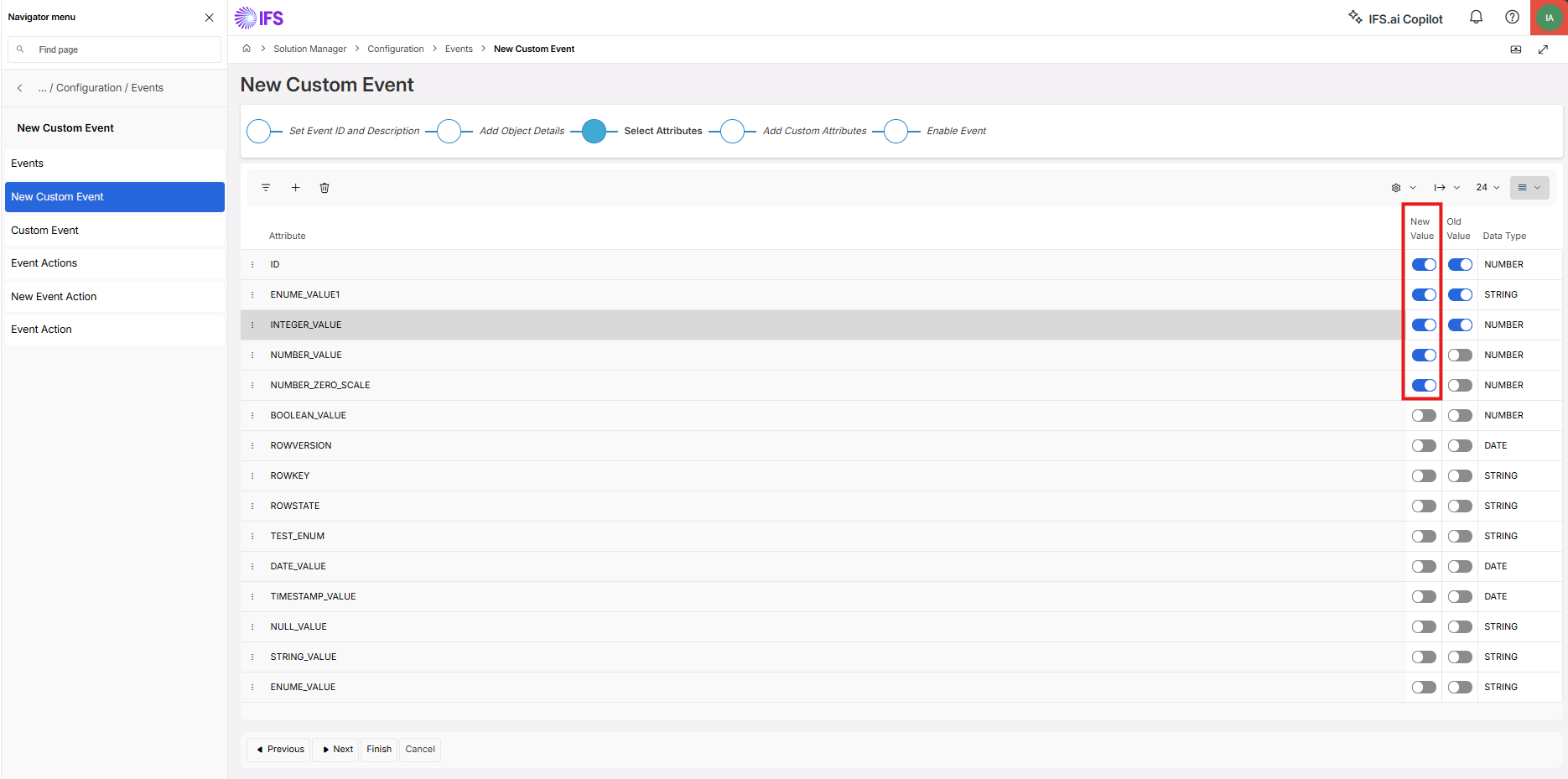
However, there is a workaround to pass the OLD values to the Workflow execution by adding them as custom attributes to the event, like:
However, there is a workaround to pass the OLD values to the Workflow execution by adding them as custom attributes to the event, like: &OLD:STATE_NAME.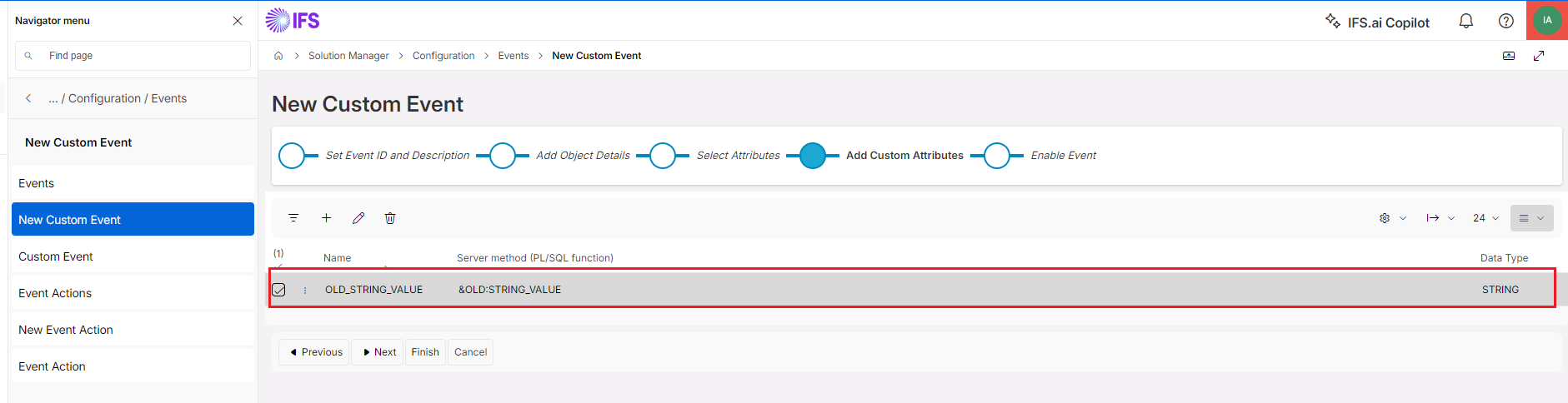
Mobile App operations: IFS Workflows do not work directly with Mobile App operations. You cannot use Workflows to call Mobile App APIs, nor trigger a Workflow using an event action (with synchronous timing) or projection action from a Mobile App request. if you wish to trigger a Workflow from a Mobile App transaction via a custom event, this can only be achieved via a custom event that is fired with asynchronous timing.
Enums with NULL values: In debug mode, any Enum (whether custom or defined in the base entity) with a null value is not displayed in the debug variable window. This behavior is limited to the debugging view and does not impact production execution. Once the Enum attribute is updated with a valid value, it becomes visible in the debug variable window as expected.
Workflow command bulk execution: Workflow commands created in Page Designer are normally limited to single-record use and the command is hidden when more than one row is selected, so bulk execution is not supported by default. A workaround is to set Deferred Enable on the command so the button stays available with multiple rows selected; the workflow then runs once per selected record. For details, see Workflow Command Support Bulk Execution.
IFS Workflows are not supported in B2B environments: This means that any attempts to implement process automation for business-to-business processes using IFS Workflows will not be successful. Users should consider alternative solutions for such requirements in above contexts.
IFS Workflows are not supported for Integration APIs: Integration APIs (Category: Integration, Class: Standard, Premium or Discouraged) cannot be invoked from within IFS Workflows. As a result, these APIs do not appear in the API name dropdown list when configuring a IFS API task, preventing their selection or use in Workflow automation.
Data Type Differences Between Debug (Troubleshoot) Mode and Production Mode
In debug mode, inputs are accepted only as key–value pairs, and there is no option to specify data types. While primitive data types are handled correctly, complex types such as Enums are treated as strings.
As a result, there can be data type differences between debug and production modes when working with complex data types such as Enums.
Example: Consider the variable ifsBpaProjectionOperation, which is automatically set during Workflow execution when the Workflow is triggered by a projection action (e.g., When a record is modified, this variable value is set to UPDATE).
- In production mode, this variable is treated as an Enum.
- In debug mode (when using captured input data), the same variable is treated as a string.
Due to this difference, the same Workflow may follow different execution paths in debug and production modes when strict equality checks are used.
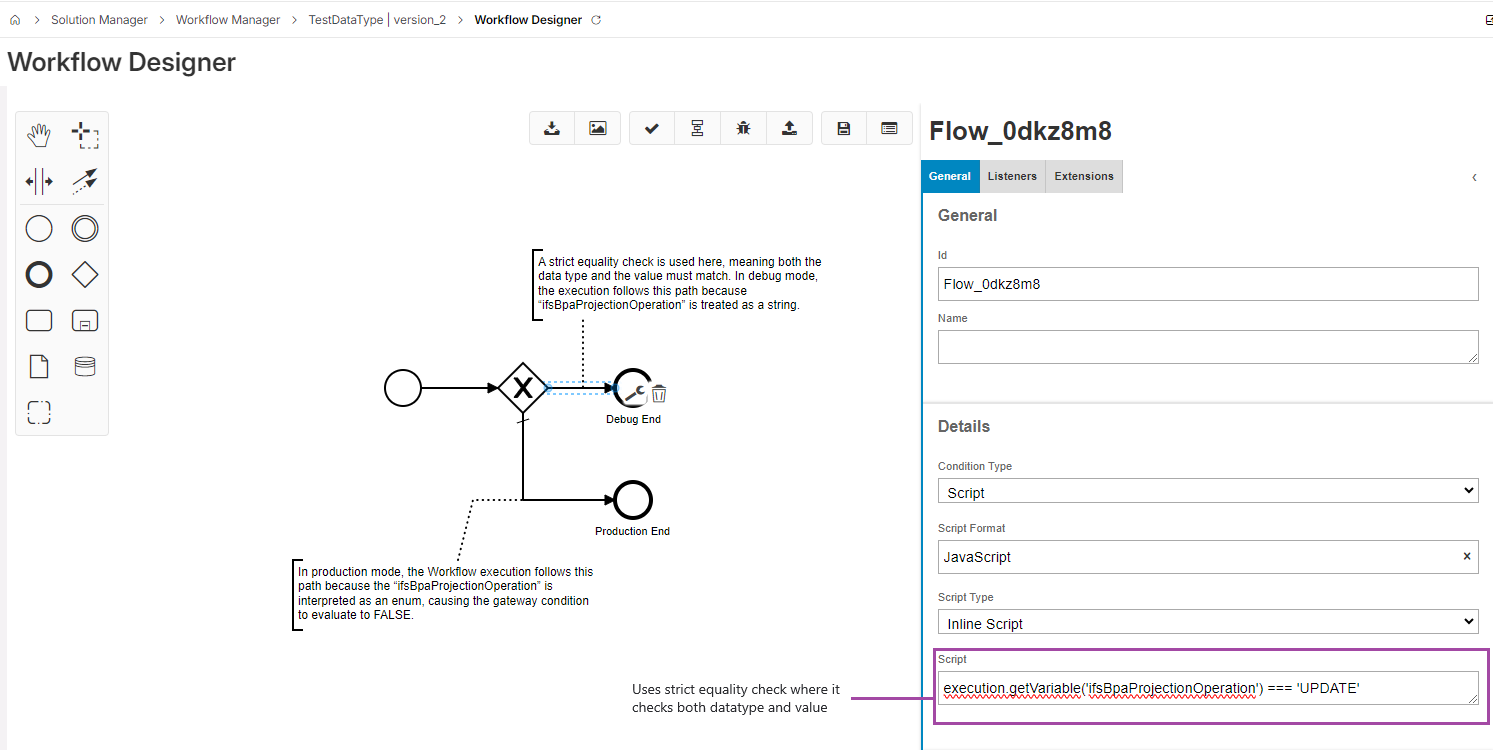
Recommendation: To ensure consistent behaviour across both modes, it is recommended to use a loose equality check, which compares only the value and not the data type. For example:
execution.getVariable('ifsBpaProjectionOperation') == 'UPDATE'
This approach helps avoid discrepancies caused by data type mismatches.
For more information about input datatype handling in debug mode, please see the Troubleshoot a Workflow section.
Naming Standards
For a detailed understanding of proper naming conventions when you are designing a Workflow, please refer the Naming Convention section.
Internal Input Variables
During Workflow execution, a set of internal input variables is automatically included. These variables may be used within your Workflows to support various logic and decision-making processes. Please note that each variable is only available once the corresponding operation has occurred. For a comprehensive list of available input variables, please see the Input Variable section.
Frequently Asked Questions
For further details and answers to common queries, a list of Frequently Asked Questions (FAQs) is available. Please refer to the FAQs here for more information and clarification on related topics.