BI Infrastructure Setup: Analysis Models - Power BI
Introduction
This guide provides instructions on setting up IFS Analysis Models - Power BI, where the BI infrastructure is self-hosted by the customer.
Deployment Scenarios
Based on the IFS deployment model and the customer's preferred hosting location for the BI infrastructure, the following deployment scenarios are available in Analysis Models – Power BI.
| IFS Cloud Hosting | BI Infrastructure Hosting |
|---|---|
| Remote 1 | Customer Azure Cloud |
| Cloud 2 | Customer Azure Cloud |
1 IFS Cloud production environment is hosted in a "remote" location of the customer's choosing.
2 IFS Cloud is hosted by IFS and provides Software as a Service (SaaS).
Custom App Owner Schema Configuration
In remote deployments, if a custom App Owner schema name is used instead of the default IFSAPP, it must be explicitly configured during BI infrastructure setup.
Update the ifscloud-values.yaml file with the custom App Owner schema name:
ifscore:
  users:
    ifsappUser:
      data: <APP_OWNER_SCHEMA>
Important
- The
ifsappUservalue is used by Analysis Models- Power BI (Self-hosted) to determine the App Owner schema to use during execution. - The value specified under
ifsappUser.datamust match the App Owner schema name in the database.
Read more about Database deploy configuration.
The above is applicable to remote customers with a non-default App Owner schema name. Ensure this is correctly set before BI infrastructure setup or data source import to avoid schema resolution issues.
The main product documentation for Analysis Models - Power BI is here.
Time Estimation for Setup
Note
This should be done by someone comfortable setting up resources in Microsoft Azure.
| Task | Time |
|---|---|
| BI Infrastructure Setup- Script Based BI Infrastructure Setup- Manual | 1-2 hrs 4 hrs |
| Environment Setup | 15 mins |
Steps
There are two steps in this guide:
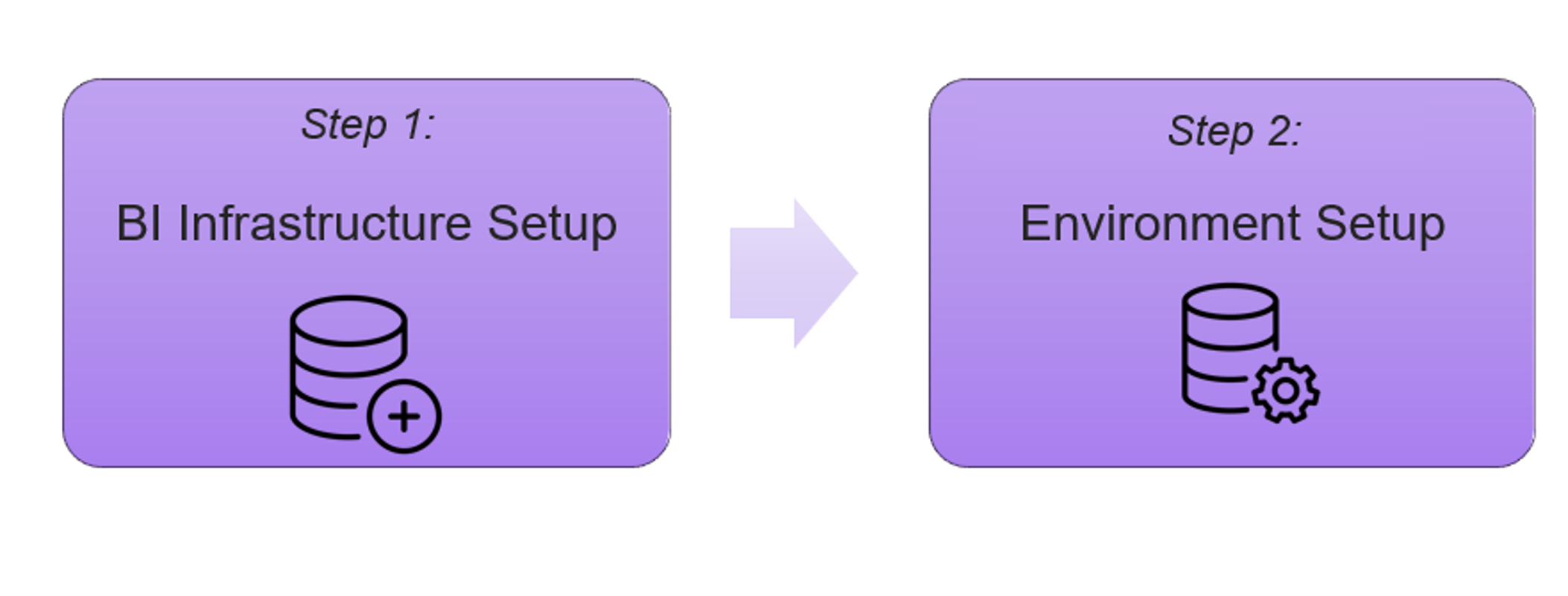
Step 1: BI Infrastructure Setup
The necessary resources should be created and the BI Infrastructure setup can be done based on the provided sample script or manually.
| App Registration | Azure Resource Management | Power BI / Fabric Setup |
|---|---|---|
| - Create Service Principal - Create and Populate Key Vault - Update Key Vault Secret | - Create a Resource Group - Set up Azure Artefacts - Create Customer ADLS - Create Data Lake Directories - Configure Remote VM | - Create Fabric Capacity - Create Power BI Workspaces - Update Power BI Gateway Name - Configure Power BI Gateway |
Note
The above resource segregation aligns with the Script-Based setup options and applies to the Analysis Models Power BI – Full setup (see Option 3 in the table below).
Setup Options:
Creating and setting up the required resources can be done based on the solution requirement.
| Solution requirement | Pre-Requisites | Recommended setup Mode | Resource setup | Parameters to Configure in the Setup Parameters page |
|---|---|---|---|---|
| Option 1- Data Lake only | An Azure Subscription | Manual setup | - App Registration: Create a Service Principal - Azure Resource Management: Creating Data Lake Storage Account *Refer Manual setup | - Datalake Account Name - Datalake Container - Tenant ID - Client ID - Azure Client secret - Datapump Flush size - Write large numbers as zero - Enable Decimal Rounding |
| Option 2- Analysis Models Power BI - Full setup excluding Publish Workflow | An Azure Subscription Microsoft Fabric subscription | Script-based setup / Manual setup | All resources: - App Registration - Azure Resource Management - Power BI / Fabric Setup *Refer to the above table for the listed resources categorized under these main areas. | All of the above parameters must be configured, including the following additional parameters: - Target Workspaces - Excluded Workspaces - Included Workspaces - Datalake Gateway ID - Service Principal Object ID - Datalake AppKey Embed User Name Claim - Embed Custom Data Claim |
| Option 3- Analysis Models Power BI - Full setup (Including Publish Workflow) | An Azure Subscription Microsoft Fabric subscription | Script-based setup / Manual setup | All resources: - App Registration - Azure Resource Management - Power BI / Fabric Setup *Refer to the above table for the listed resources categorized under these main areas. | All of the above parameters must be configured, including the following additional parameter: - Golden Workspace ID |
Step 2: Environment Setup
Once the artefact creation is completed, connecting to IFS Cloud should be done via the Setup Parameters page.
Refer to the table below for detailed descriptions of each parameter, along with guidance on their appropriate usage based on solution requirements.
Data Lake Solution
When configuring parameters for the Data Lake setup (see Option 1 in the above table), only the values listed below are required.
| Parameter Name | Description |
|---|---|
| Datalake Account Name | This is the Account name related to the Data Lake. |
| Datalake Container | This specifies the Data Lake Container Name. |
| Tenant ID | This is the Azure Tenant ID. |
| Client ID | This is the Azure Client ID. |
| Azure Client Secret | This is the Client secret value. |
| Datapump Flush Size | This specifies the count of rows that will be read into memory before being written to disk by datapump. Note that this can be configured as preferred for each Parquet Data Source as well. Read more. If an out of memory exception occurs during loading data, this value can be adjusted accordingly. |
| Write Large Numbers As Zero | When a number exceeds the maximum allowed whole number digits (15) or total significant digits (29) for Parquet files, and this parameter is enabled, the value will be written as 0 instead of reporting an error. |
| Enable Decimal Rounding | When a number has more than 18 decimal places, or exceeds 29 total significant digits with decimal places that can be rounded, the value will be rounded if this parameter is enabled instead of reporting an error. Rounded values are logged during Data Source loading. |
Analysis Models Power BI + Data Lake Solution
When configuring parameters for Analysis Models in Power BI (see Option 2 or Option 3 in the above table), ensure that below parameters have values.
| Parameter Name | Description |
|---|---|
| Datalake Account Name | This is the Account name related to the Data Lake. |
| Datalake Container | This specifies the Data Lake Container Name. |
| Tenant ID | This is the Azure Tenant ID. |
| Client ID | This is the Azure Client ID. |
| Target Workspaces | This specifies the Target workspace list mapped to relevant areas. |
| Excluded Workspaces | This is the comma separated list of strings to exclude from workspaces being returned for embedding and report editing via Power BI Lobby Element Designer. Multiple comma separated values can be added and it is case insensitive. Example: Excluded Workspaces = golden. - In this case the applicable workspaces which includes the word 'golden' are excluded (typically, Golden Workspace which includes published IFS Delivered core models). This prevents the access to the respective workspaces from the Power BI Lobby Element Designer and Power BI Report Editor pages. |
| Included Workspaces | This is the comma separated list of strings to include in workspaces being returned for embedding and report editing via Power BI Lobby Element Designer. Multiple comma separated values can be added and it is case insensitive. Example: Included Workspaces = AM_DEV. - In this case the applicable workspaces which includes the word 'AM_DEV' are included. This enables accessing only the respective workspaces from the Power BI Lobby Element Designer and Power BI Report Editor pages. In case where both the Included Workspaces and Excluded Workspaces parameters have a value, only the values added in Included Workspaces parameter will be considered. |
| Golden Workspace ID* | This specifies the Golden workspace which will be used to publish IFS delivered core models and Download Models. This parameter is optional. If a Golden Workspace is not created, the parameter is not required. *Not required if you do not intend to use the Publish Workflow. |
| Datalake Gateway ID | This is the ID of the relevant Data Lake gateway. |
| Azure Client Secret | This is the Client secret value. |
| Service Principal Object ID | This is the Object ID of the Service Principal. |
| Datalake AppKey | App Key from the Data Lake account, which is used to bind the gateway. |
| Datapump Flush Size | This specifies the count of rows that will be read into memory before being written to disk by datapump. Note that this can be configured as preferred for each Parquet Data Source as well. Read more. If an out of memory exception occurs during loading data, this value can be adjusted accordingly. |
| Embed User Name Claim | This is the Name of the claim to be used as the Effective Identity when embedding RLS enabled Power BI reports connected to SQL Server Analysis Services. (Effective Identity defines the user identity and roles). Claim types example: email address, UPN http://schemas.xmlsoap.org/ws/2005/05/identity/claims/upn http://schemas.xmlsoap.org/ws/2005/05/identity/claims/emailaddress |
| Embed Custom Data Claim | This is the Name of the claim to be used as CustomData when embedding RLS enabled Power BI reports connected to Azure Analysis Services. Claim types example: email address, UPN http://schemas.xmlsoap.org/ws/2005/05/identity/claims/upn http://schemas.xmlsoap.org/ws/2005/05/identity/claims/emailaddress |
| Write Large Numbers As Zero | When reading a number causes an overflow exception (larger than 28), and when this parameter is enabled, the value will be written to the parquet file as 0. |
| Enable Decimal Rounding | When a value exceeds the maximum allowed decimal places supported by Parquet by default (which is 18) or surpasses the maximum precision and has decimal places which can be rounded, it will be rounded if this parameter is set to true. The relevant logs for data source loading will indicate when any rounding occurs. The setting helps prevent issues in data models in cases where certain tables contain large decimal places. Therefore, it will avoid any exceptions that are thrown when the parameter is set to true. By default, this parameter is turned off. |