Incremental Refresh
During the Incremental refresh, only the Changed and New partitions are loaded into the Data Lake. If a Partition has changed, then it will be loaded/overwritten in the Data Lake. If a Partition is new, then the parquet file will be created.
In a scenario where there is a partition in which no data is available anymore (which was Loaded and Refreshed previously), data of the related partition will be removed from the lake and the data set.
How it works:
- During round 1 of Loading /Refreshing, partition A (YYYYMM) data is Loaded and Refreshed. And a .parquet file for partition A (YYYYMM) is available in the Power BI data set for the related YYYYMM.
- In round 2 when partition A (YYYYMM) has no data in Oracle anymore, during Loading/Refreshing, this partition will be removed in the Power BI dataset.
- This is done by passing the partitions to be deleted, as detected by the Detect Changes Logic, which removes the .parquet file for the partition A (YYYYMM).
Define Incremental Load details for Parquet Data Source
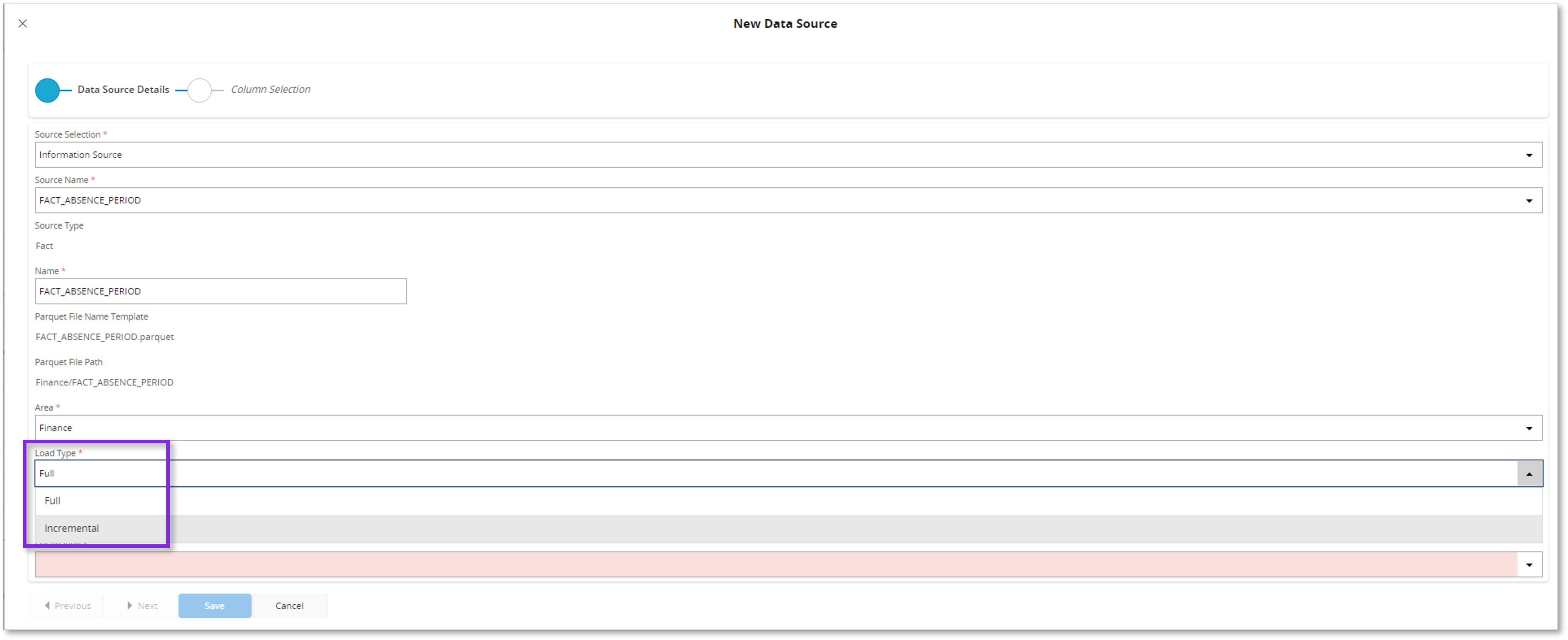
During the creation of a Parquet Data Source, Incremental Load details can be specified. This is supported only for Facts (Information Sources or any other table/ view) where the Load type can be defined as Incremental in the New Data Source assistant.
1.When Source Type is Fact, the default Load Type (Full) can be changed as Incremental to enable Incremental Refresh.
2.In the second step of the New Data Source assistant, the Incremental Load details can be defined.

When Incremental refresh is turned on (the Partition Column has a value), this column contains _{0}. It is a placeholder where the value of the partition column is placed.
Note
Please note that the criteria mentioned below (Partition Column and Detect Changes Column) are prerequisites for defining the Parquet Data Source Incremental Load details. This means that the Information Source/Views should be configured in a way that the relevant columns are introduced to align with the framework requirements.
Criteria to select the Partition column:
- Should be a static column which cannot be modified
- Should be a Date/Time type column, and the date formatting should be applied (YYYY-MM-DD) or a column containing year values
- Should be a mandatory column
Criteria to select the Detect Change column:
- Should be a mandatory column
- The column should be updated whenever there is a change in the data row.
Criteria to select the Detect Change function:
This selection can be made based on the nature of the column being selected for detecting changes.
- If the Detect Changes column is date-based, the MAX function can be used.
- If the Detect Changes column has values that can be aggregated, the SUM function can be used.
Include Row count:
Enabling the toggle to include Row Count in the detect changes query is essential, as it ensures accurate detection of deleted rows and proper application of Data Filters.
Examples of Incremental Load
Example 1 - Scenario with Row Count
Incremental Loading scenario for the fact= FACT_ABSENCE_PERIOD (note that the column names are hypothetical)
- Partition Column = month_key
Since the group by function is added automatically to this query, this fact table is grouped by the month_key.
Detect Changes column = entry_date
Detect Changes function = max
Row count included
SELECT month_key as partition_key, max(entry_date) as last_value , count(*) as row_count
FROM FACT_ABSENCE_PERIOD
GROUP BY month_key
Example 2
Incremental Loading scenario for the fact= FACT_ABSENCE_PERIOD (note that the column names are hypothetical)
Partition column = month_key
Detect Changes column = amount
Detect Changes function = sum
Row count excluded
SELECT month_key as partition_key, sum(amount) as last_value
FROM FACT_ABSENCE_PERIOD
GROUP BY month_key
These data sources can be explicitly loaded into the Data Lake, or they can be loaded based on a Workload Job Definition or an Analysis Model.
Incremental Refresh of an Analysis Model
Analysis Models can be refreshed based on the Incremental Refresh method. For the Incremental Refresh, the following formats are supported, and the example shows how the data must be formatted in the Partition Column.
| Granularity | Format in table | Parquet file name | Notation | Power BI Partition Name |
|---|---|---|---|---|
| Year | 2023 | *YYYY | YYYY | 2023 |
| Quarter | 2023Q4 | *YYYY-QQ | yyyy-QQ | 2023Q4 |
| Month | 2023-11 | *YYYY-MM | yyyy-MM | 2023Q411 |
| Day | 2023-11-25 | *YYYY-MM-DD | YYYY-MM-dd | 2023Q41125 |
The Last Value for a partition is stored in the database. This is determined from the Detect Changes Column. A query like below is executed against the database:
SELECT period_id_key AS partition_key, MAX(last_updated_date) AS last_value, count(*) as row_count
FROM <table_name>
GROUP BY period_id_key
Based on the outcome of the previous query, it is determined whether the last_value has changed, or the row_count has changed (Row Count is taken into account when the ‘Detect Changes Row Count’ is set to true).
Below is a sample query of an Incremental refreshing model's partition format [datasourcename]_YYYYMMDD.parquet.

Parameters
Parameters below can be defined in the Manage Parameters dialog in Power Query Editor.
| Parameter | Details |
|---|---|
| RangeStart RangeEnd | During the Incremental Data Refresh, these two parameters enable defining the date range of the data to be loaded into the Power BI Desktop model. The range parameters must be used in the m-expression; therefore values can be set accordingly. These parameters are required to perform a successful refresh. Additionally, in Power BI desktop, it is important to set the values for RangeStart and RangeEnd parameters correctly based on actual values (parquet files for the given range should be available). Otherwise, it will indicate that the table is empty. |
| IfsDataLakeContainerPath | Connection string to the relevant container inside the ADLSG2. Example: https://examplestorageaccount.dfs.core.windows.net/container_name |
Transform File function
This Power Query function is used to apply consistent transformations to multiple files.
The Transform File function can be created as below.
1.In the Query window, go to 'New Source'.
2.Select 'Blank Query'.
3.Open 'Advanced Editor'.
4.Add the following m-expression.
= (Parameter1) => let
        Source = Parquet.Document(Parameter1, [Compression=null, LegacyColumnNameEncoding=false, MaxDepth=null])
    in
        Source
Analysis Models that support Incremental Loading
Starting with this release, the following models support Incremental Loading.
1.Sales
2.Inventory
3.General Ledger
The relevant IFS Core Models and the Data Source Definitions can be downloaded from the Knowledge Base resource.
- It is important to note that the sample reports are configured for partitioning by Month, and configuring the Model and Data Sources for other partitioning formats (Day, Quarter, Year) should be done on your own.
Converting the Partition Type of an Analysis Model
Given the current configurations, any changes to the Partition Column must be made by following the steps outlined below.
1.Information Source must be configured to align with the framework requirements.
This includes ensuring that appropriate columns are available for selection as the Detect Changes Column and the Partition Column.
2.Parquet Data Sources should be created based on the configured Information Sources.
3.The Power BI file needs to be modified to update the Partitioning format (Day, Month, Quarter, Year) to match the requirement.
FirstFileName = "FACT_INVENTORY_VALUE_PQ_" & DateTime.ToText(RangeStart, "yyyy-MM-dd") & ".parquet", LastFileName = "FACT_INVENTORY_VALUE_PQ_" & DateTime.ToText(RangeEnd, "yyyy-MM-dd") & ".parquet",
Converting a Partition-based Analysis Model into a Full Load Type
1.In the relevant Parquet Data Source Details page, use the Edit option to clear all existing details for Incremental Loading : Partition Column, Detect Changes Column, Detect Changes Function, and Include Row Count.
2.After saving the changes, the Load Type will be switched to Full.
3.The Power BI file needs to be modified by updating the m-expression. This includes removing all the applied steps for Incremental Loading and selecting the relevant Data Source to refresh the .parquet file in the Data Lake folder.
4.Refresh the model to reflect changes.
Refer to the examples below on changing the m-expression to facilitate other Partitioning formats.
Power Bi M-expression examples for Partitioning
Loading partition data based on the Day
let
    Source = AzureStorage.DataLake(IfsDataLakeContainerPath & "/Shared/content/FACT_AM_PARQ_LOG_TAB"),

    FirstFileName = "FACT_AM_PARQ_LOG_TAB_" & DateTime.ToText(RangeStart, "yyyy-MM-dd") & ".parquet",
    LastFileName = "FACT_AM_PARQ_LOG_TAB_" & DateTime.ToText(RangeEnd, "yyyy-MM-dd") & ".parquet",
    IncRefreshFilter = Table.SelectRows(Source, each [Name] >= FirstFileName and [Name] < LastFileName),

    RemoveIncRefresh = Table.SelectColumns(IncRefreshFilter, {"Content", "Name"}),

    FilteredHiddenFiles1 = Table.SelectRows(RemoveIncRefresh, each [Attributes]?[Hidden]? <> true),
    InvokeCustomFunction1 = Table.AddColumn(FilteredHiddenFiles1, "Transform File", each #"Transform File"([Content])),
    RenamedColumns1 = Table.RenameColumns(InvokeCustomFunction1, {"Name", "Source.Name"}),
    RemovedOtherColumns1 = Table.SelectColumns(RenamedColumns1, {"Source.Name", "Transform File"}),
    ExpandedTableColumn1 = Table.Combine(RemovedOtherColumns1[#"Transform File"])
in
    ExpandedTableColumn1
Sample .pbit file with M-expression for Partitioning (Partitioned Days) can be downloaded from here for further reference.
Loading Quarterly based partition data
let
    Source = AzureStorage.DataLake(IfsDataLakeContainerPath & "/Finance/content/AM_PARQ_FACT_QUARTERS_TEST"),

    FirstFileName = "AM_PARQ_FACT_QUARTERS_TEST_" & DateTime.ToText(RangeStart, "yyyy") & "Q" & Number.ToText(Date.QuarterOfYear(RangeStart)) & ".parquet",
    LastFileName = "AM_PARQ_FACT_QUARTERS_TEST_" & DateTime.ToText(RangeEnd, "yyyy") & "Q" & Number.ToText(Date.QuarterOfYear(RangeEnd)) & ".parquet",

    IncRefreshFilter = Table.SelectRows(Source, each [Name] >= FirstFileName and [Name] < LastFileName),
    RemoveIncRefresh = Table.SelectColumns(IncRefreshFilter, {"Content", "Name"}),

    FilteredHiddenFiles1 = Table.SelectRows(RemoveIncRefresh, each [Attributes]?[Hidden]? <> true),
    InvokeCustomFunction1 = Table.AddColumn(FilteredHiddenFiles1, "Transform File", each #"Transform File"([Content])),
    RenamedColumns1 = Table.RenameColumns(InvokeCustomFunction1, {"Name", "Source.Name"}),
    RemovedOtherColumns1 = Table.SelectColumns(RenamedColumns1, {"Source.Name", "Transform File"}),
    ExpandedTableColumn1 = Table.Combine(RemovedOtherColumns1[#"Transform File"])
in
    ExpandedTableColumn1
Sample .pbit file with M-expression for Partitioning (Partitioned Quarters) can be downloaded from here for further reference.
Reset Partitions
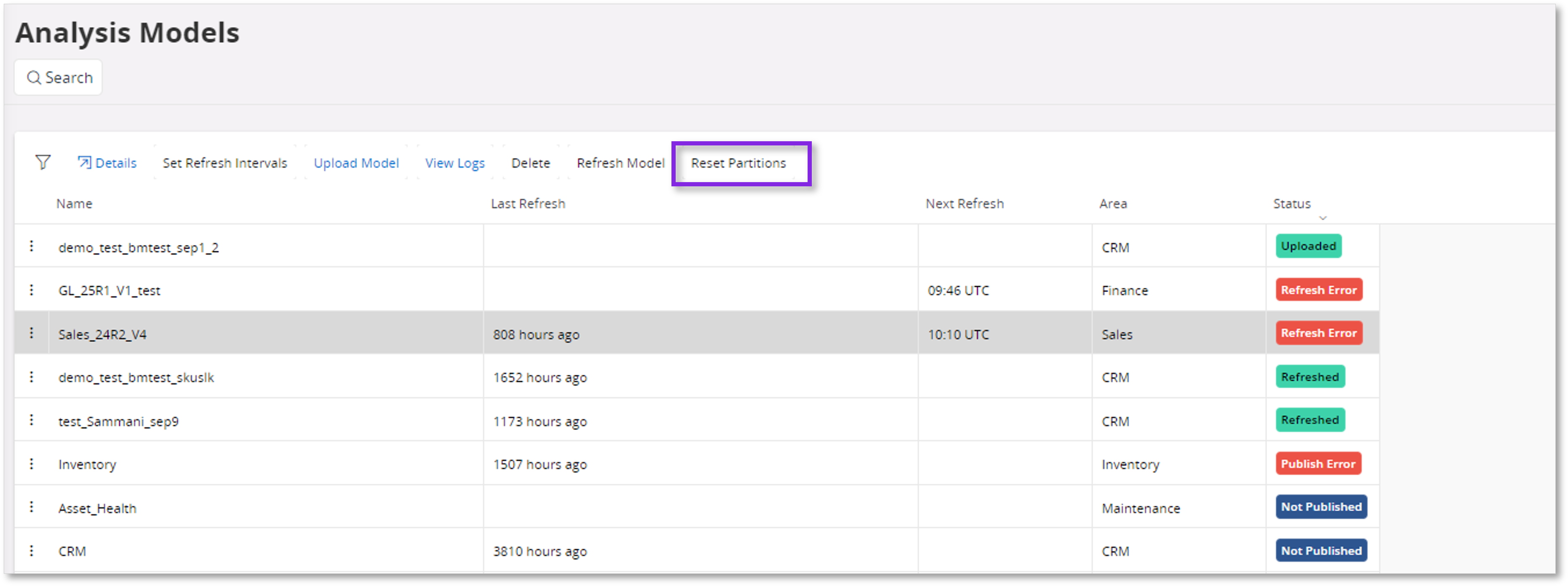
The Reset Partitions option available on the Analysis Models - Power BI page allows clearing the last refresh time of Data Source partitions connected to Analysis Models that support Incremental Loading.
Purpose and Use Cases
This functionality is useful in the following scenarios:
- Overwrite Scenario: When an Incremental load-based Analysis Model is overwritten, the last refresh time remains the same as the original model’s refresh. To ensure changes are detected and properly loaded, use the Reset Partitions option to clear the last refreshed time and refresh the Model again.
- Refresh Errors: If an Incremental load-based Analysis Model encounters a Refresh Error, resetting the partitions allows the refresh process to be reattempted without considering outdated timestamps.
- Data Lake Synchronization: After resetting partitions, it is ensured that data in the Data Lake is refreshed accurately and completely.
Functionality
- The Reset Partitions option selects all partitions associated with the Data Sources connected to the Incremental load-based Analysis Model and clears their respective last refresh timestamps.
- This action enables the Data Pump to accurately detect changes and reload the affected partitions.
- The Reset Partitions option is available when the model status is Published, Uploaded, Refreshed, or has encountered a Refresh Error.
Progress‑based logging for large Partitioned Loads
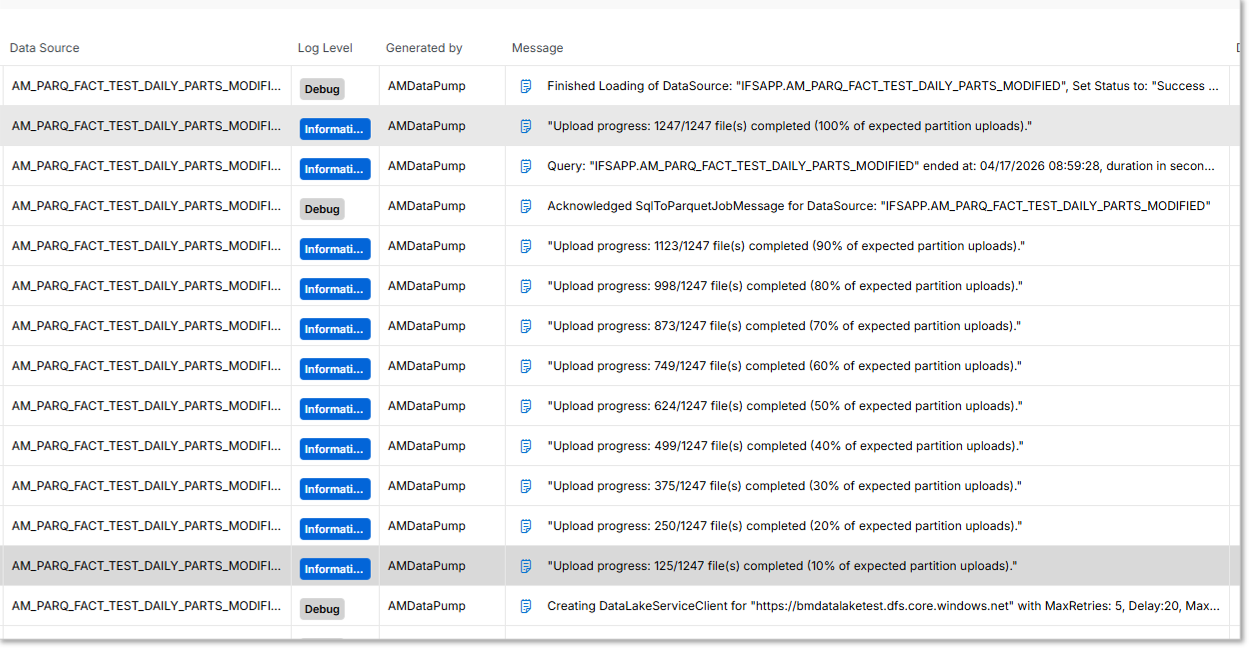
In scenarios where the data source contains a large number of partitions, end‑user logging entries can become excessive during data load operations. This volume is handled by providing meaningful progress visibility through the Data Service Log.
How it works
If a data source has more than 20 partitions to load (refer to the note below), logging switches from per‑file logging to progress‑based logging. The partition count is determined based on the number of partitions in the Loading Status. In this mode, aggregated summary logs are generated.
Note
This threshold is not configurable via IFS Cloud Web but can be configured internally. If modification is required, it can be adjusted through a deployment for testing and troubleshooting purposes.
Instead of generating an end‑user log entry for every uploaded file, periodic progress messages are logged to summarize upload completion based on the following criteria:
- Percent‑based progress – Logged when upload progress reaches the next 10% milestone of the total expected partitions
- Time‑based progress – Logged when a file is uploaded and the previous progress log was generated more than 20 minutes ago
This approach ensures progress visibility while avoiding excessive log generation for large partitioned loads.
Example progress messages:
Upload progress: 2/100 file(s) completed (2% of expected partition uploads)Upload progress: 10/100 file(s) completed (10% of expected partition uploads)
Advantages
Reduces database write volume during large data load operations.
Enables meaningful tracking of long‑running uploads
Absolute progress (2/100 files)
Relative progress (2% of expected uploads)
Read more about Data Service Log.